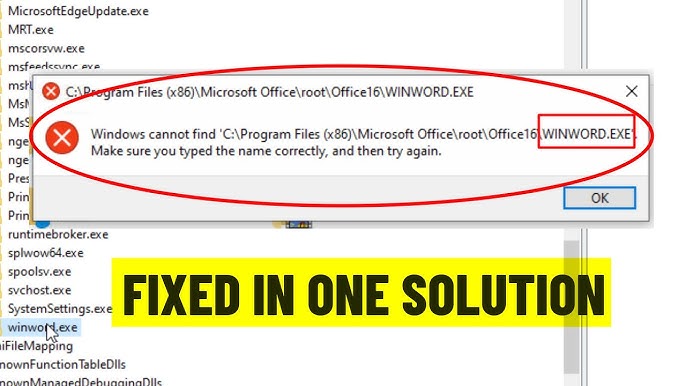
Microsoft Excel is a powerful tool used for data analysis, financial modeling, and optimization tasks. One of its most valuable features is the Solver add-in, which helps users find optimal solutions to complex problems. However, many users encounter an issue where Excel says it cannot locate Solver file, preventing them from using this essential feature.
If you’re facing this error, don’t worry—it’s a common problem with straightforward solutions. In this comprehensive guide, we’ll explore the causes, fixes, and best practices to resolve the issue and get Solver working again.
What Is the Solver Add-in in Excel?
The Solver add-in is a built-in tool in Excel used for optimization and decision-making.
Key Functions
- Maximize or minimize values
- Solve linear and nonlinear problems
- Perform constraint-based calculations
It is widely used in:
- Business analysis
- Engineering calculations
- Financial modeling
What Does the Error Mean?
When Excel displays “Cannot locate Solver file”, it typically means:
- The Solver add-in is missing
- The file path is incorrect
- The add-in is not properly installed
Common Causes of the Solver Error
1. Solver Add-in Not Enabled
The add-in may be disabled by default.
2. Missing Solver Files
Required files may be deleted or corrupted.
3. Incorrect File Path
Excel cannot find the Solver.xlam file.
4. Office Installation Issues
A faulty installation can cause missing components.
5. Version Compatibility Problems
Older versions may conflict with newer systems.
Quick Fixes to Try First
Restart Excel
Close and reopen Excel to clear temporary issues.
Restart Your Computer
This can resolve system-level glitches.
Method 1: Enable Solver Add-in
The most common fix.
Steps:
- Open Excel
- Click File → Options
- Select Add-ins
- At the bottom, choose Excel Add-ins
- Click Go
- Check Solver Add-in
- Click OK
Method 2: Manually Locate Solver File
If Excel cannot find the file:
Steps:
- Go to File → Options → Add-ins
- Click Go
- Click Browse
- Navigate to:
C:\Program Files\Microsoft Office\root\OfficeXX\Library\SOLVER
- Select Solver.xlam
- Click OK
Method 3: Reinstall Solver Add-in
Steps:
- Disable Solver add-in
- Restart Excel
- Re-enable Solver
This refreshes the connection.
Method 4: Repair Microsoft Office
A repair can restore missing files.
Steps:
- Open Control Panel
- Go to Programs → Programs and Features
- Select Microsoft Office
- Click Change
- Choose Quick Repair or Online Repair
Method 5: Check File Permissions
Ensure Excel can access Solver files.
Steps:
- Navigate to Solver folder
- Right-click → Properties
- Check Security settings
- Ensure full access
Method 6: Update Microsoft Excel
Keeping Excel updated prevents compatibility issues.
Steps:
- Open Excel
- Go to File → Account
- Click Update Options → Update Now
Method 7: Run Excel as Administrator
Sometimes permission issues cause errors.
Steps:
- Right-click Excel icon
- Select Run as administrator
Method 8: Check Antivirus Interference
Antivirus software may block Solver files.
Steps:
- Temporarily disable antivirus
- Try enabling Solver again
Re-enable antivirus after testing.
Method 9: Reinstall Microsoft Office
If all else fails:
Steps:
- Uninstall Microsoft Office
- Restart your computer
- Reinstall Office
Advanced Troubleshooting
Check Registry Entries
Incorrect registry settings can cause issues.
Only advanced users should attempt this.
Use System File Checker
Fix corrupted system files.
Steps:
- Open Command Prompt (Admin)
- Run:
sfc /scannow
Preventing Solver Errors in the Future
Keep Office Updated
Regular updates fix bugs.
Avoid Deleting System Files
Do not remove files from Office directories.
Use Trusted Add-ins
Avoid third-party conflicts.
Common Mistakes to Avoid
Skipping Add-in Activation
Many users forget to enable Solver.
Ignoring File Paths
Incorrect paths cause errors.
Using Outdated Versions
Leads to compatibility problems.
Real-World Example
Imagine working on a financial model that requires optimization. Suddenly, Excel cannot locate the Solver file. By manually browsing to the Solver.xlam file and enabling it, you restore functionality and complete your work without delays.
Frequently Asked Questions
Where is the Solver file located?
Usually in the Office installation folder under Library\SOLVER.
Is Solver included in Excel?
Yes, but it must be enabled manually.
Can I download Solver separately?
It is typically included with Excel installations.
Why Solver Is Important
Solver is essential for:
- Optimization problems
- Decision-making
- Advanced data analysis
Future of Excel Add-ins
Microsoft continues to enhance add-ins with:
- Cloud integration
- AI-powered tools
- Improved usability
Conclusion
The “Excel says it cannot locate Solver file” error can be frustrating, but it is usually easy to fix. Whether the issue is caused by a disabled add-in, missing files, or installation problems, the solutions outlined in this guide will help you restore Solver functionality quickly.
By enabling the add-in, checking file paths, repairing Office, and keeping your system updated, you can prevent this issue from recurring. With Solver working properly, you can continue performing advanced calculations and optimization tasks efficiently.