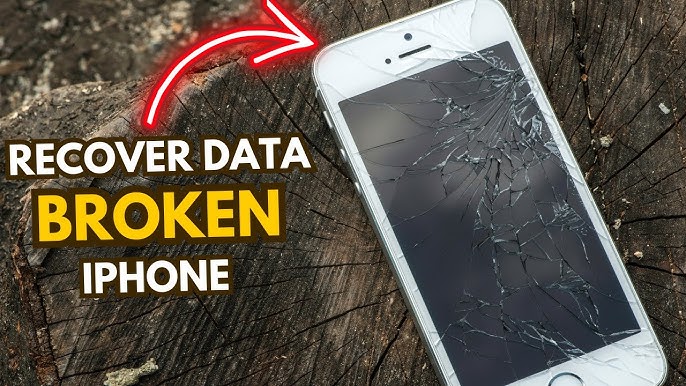
Losing access to your iPhone can be stressful—especially when it contains valuable photos and memories. If your device is damaged and you don’t have a backup, you might think your data is gone forever. Fortunately, that’s not always the case.
In this comprehensive guide, we’ll explore how to get photos off a broken iPhone without backup, covering multiple methods depending on the type of damage your device has. Whether your screen is cracked, unresponsive, or your phone won’t turn on, there are still ways to recover your photos.
Understanding the Type of Damage
Before attempting recovery, identify what kind of damage your iPhone has.
1. Broken Screen (Still Turns On)
The phone works, but you can’t interact with it.
2. Touch Not Responding
Display is visible but not responsive.
3. Water Damage
Device may behave unpredictably or not power on.
4. Completely Dead iPhone
No power or response at all.
Each scenario requires a different approach.
Method 1: Use a Computer to Access Photos
If your iPhone still powers on, this is the easiest method.
Steps:
- Connect your iPhone to a computer
- Unlock the device (if possible)
- Open File Explorer (Windows) or Finder (Mac)
- Navigate to the DCIM folder
- Copy your photos
Important Notes:
- You must trust the computer on your iPhone
- If the screen is unresponsive, this may not work
Method 2: Use iCloud (Even Without Backup)
Even if you didn’t manually back up your iPhone, photos may still be synced.
Steps:
- Go to iCloud.com
- Sign in with your Apple ID
- Click Photos
- Download your images
Why This Works:
If iCloud Photos was enabled, your images are automatically uploaded.
Method 3: Use a Lightning to USB Adapter + External Keyboard
If your screen is broken but the phone works:
What You Need:
- Lightning to USB adapter
- USB keyboard
Steps:
- Connect the keyboard to your iPhone
- Use keyboard commands to unlock the device
- Connect to a computer
- Transfer photos
This method bypasses the need for touch input.
Method 4: Use Third-Party Data Recovery Software
Several tools can extract data from damaged iPhones.
Popular Tools:
- Dr.Fone
- iMobie PhoneRescue
- Tenorshare UltData
Steps:
- Install recovery software on your computer
- Connect your iPhone
- Scan for recoverable files
- Export photos
Pros:
- Works with partially damaged devices
- Can recover deleted photos
Cons:
- Paid software
- Not always guaranteed
Method 5: Use iTunes or Finder
Even without a backup, you may still access data.
Steps:
- Connect your iPhone to a computer
- Open iTunes or Finder
- Check if the device is detected
- Attempt a backup or file extraction
If successful, you can retrieve photos from the backup file.
Method 6: Use Voice Control or Siri
If your screen is unresponsive but the phone works:
Steps:
- Activate Siri
- Say “Turn on Voice Control”
- Use voice commands to navigate
- Enable photo sharing or AirDrop
This allows limited control without touch.
Method 7: AirDrop Photos
If your iPhone is partially functional:
Steps:
- Enable AirDrop
- Select photos using voice or external input
- Send them to another Apple device
This is quick and wireless.
Method 8: Repair the Screen Temporarily
If the screen is the only issue:
- Replace the screen temporarily
- Use a repair service
- Transfer photos immediately
Even a temporary fix can help recover data.
Method 9: Use Apple Support or Data Recovery Services
If your iPhone is completely dead:
Options:
- Visit Apple Store
- Use professional data recovery services
These services can extract data directly from the device’s storage.
Tips to Increase Recovery Success
Act Quickly
Avoid using the device unnecessarily.
Keep It Charged
Ensure the phone has enough power during recovery.
Avoid DIY Repairs (If Unsure)
Improper handling can worsen damage.
Common Mistakes to Avoid
Waiting Too Long
Damage can worsen over time.
Using Untrusted Software
May compromise your data.
Ignoring iCloud
Many users forget their photos are already synced.
Preventing Data Loss in the Future
Enable iCloud Backup
Automatically saves your data.
Use Regular Backups
Backup to computer or cloud regularly.
Protect Your Device
Use a case and screen protector.
Monitor Storage
Ensure enough space for backups.
Real-Life Scenario
Imagine dropping your iPhone and breaking the screen completely. You panic because your photos aren’t backed up. However, after logging into iCloud, you discover that most of your images were automatically synced.
This situation highlights the importance of checking all recovery options before assuming data loss.
Frequently Asked Questions
Can I recover photos from a completely dead iPhone?
Yes, but it may require professional services.
Do I need a backup to recover photos?
Not always—methods like iCloud or recovery software can help.
Is recovery software safe?
Use trusted tools to avoid risks.
When Recovery Is Not Possible
In rare cases, recovery may fail due to:
- Severe hardware damage
- Corrupted storage
- Overwritten data
Professional services may still offer solutions.
Conclusion
Recovering photos from a broken iPhone without a backup may seem impossible, but there are several effective methods available. From using iCloud and connecting to a computer to leveraging recovery software and professional services, your chances of retrieving your data are higher than you might expect.
The key is to identify the type of damage and choose the appropriate method. Acting quickly and carefully increases your chances of success.
To avoid similar situations in the future, always maintain regular backups and protect your device. With the right precautions, you can ensure your valuable memories are never lost again.