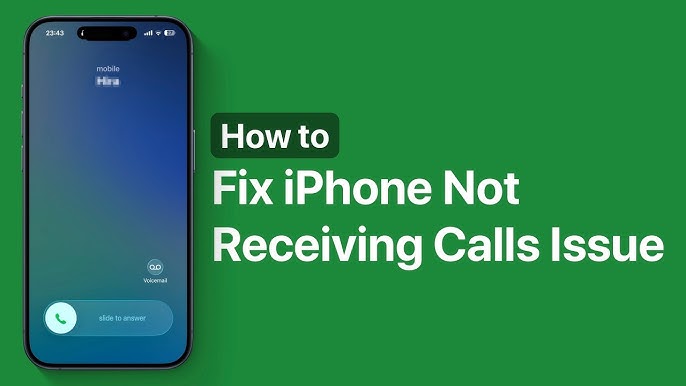
Few things are more frustrating than picking up your iPhone only to realize you can’t make or receive calls. Whether it’s an important business call or a conversation with loved ones, this issue can disrupt your daily routine.
The good news is that the problem is usually easy to fix. In this comprehensive guide, we’ll walk you through the causes and solutions for fixing an iPhone not receiving calls or making calls, so you can restore full functionality quickly.
Why Your iPhone Is Not Making or Receiving Calls
Before jumping into solutions, it’s important to understand what might be causing the issue.
1. Network Problems
Poor signal or network outages can prevent calls.
2. Airplane Mode Enabled
This disables all wireless connections.
3. Do Not Disturb Mode
Calls may be silenced or blocked.
4. SIM Card Issues
A faulty or improperly inserted SIM can cause problems.
5. Software Bugs
iOS glitches may interfere with call functions.
6. Carrier Settings Issues
Outdated settings can affect connectivity.
Quick Checks Before Troubleshooting
Start with these simple checks:
- Ensure your iPhone has signal bars
- Check if Airplane Mode is off
- Verify that your account is active with your carrier
Sometimes the issue is minor and easily overlooked.
How to Fix iPhone Not Receiving or Making Calls
Follow these proven methods step by step.
1. Toggle Airplane Mode
This refreshes your network connection.
Steps:
- Open Control Center
- Turn on Airplane Mode
- Wait 10 seconds
- Turn it off
This forces your device to reconnect to the network.
2. Check Do Not Disturb Settings
Do Not Disturb may block incoming calls.
Steps:
- Go to Settings
- Tap Focus → Do Not Disturb
- Turn it off
Also check if any Focus modes are active.
3. Restart Your iPhone
Restarting clears temporary system glitches.
Steps:
- Hold the power button
- Slide to power off
- Turn the device back on
Try making a call after restarting.
4. Check Signal Strength
Weak signals can prevent calls.
- Move to an open area
- Avoid basements or enclosed spaces
- Check if others nearby have signal
If the signal is weak, your location may be the issue.
5. Update iOS
Software updates fix bugs and improve performance.
Steps:
- Go to Settings
- Tap General → Software Update
- Install any available updates
Keeping your device updated ensures compatibility with your carrier.
6. Check Carrier Settings Update
Carrier updates are essential for network performance.
Steps:
- Go to Settings
- Tap General → About
- If prompted, update carrier settings
7. Reset Network Settings
This is one of the most effective fixes.
Steps:
- Go to Settings
- Tap General → Transfer or Reset iPhone
- Select Reset → Reset Network Settings
This will remove saved Wi-Fi passwords.
8. Check SIM Card
A faulty SIM can disrupt calling.
Steps:
- Power off your iPhone
- Remove the SIM card
- Reinsert it properly
- Turn the device back on
If the problem persists, try another SIM.
9. Turn Off Call Forwarding
Call forwarding may redirect calls elsewhere.
Steps:
- Go to Settings
- Tap Phone → Call Forwarding
- Turn it off
10. Disable Silence Unknown Callers
This feature may block incoming calls.
Steps:
- Go to Settings
- Tap Phone
- Turn off “Silence Unknown Callers”
Fix iPhone Not Receiving Calls Only
If you can make calls but not receive them:
- Check Do Not Disturb
- Verify blocked numbers list
- Ensure ringtone volume is high
Fix iPhone Not Making Calls Only
If outgoing calls fail:
- Check your carrier plan
- Ensure sufficient balance
- Try dialing different numbers
Advanced Troubleshooting
If basic fixes don’t work, try these advanced solutions.
Reset All Settings
This resets system settings without deleting data.
Steps:
- Go to Settings
- Tap General → Transfer or Reset iPhone
- Select Reset → Reset All Settings
Restore iPhone Using Computer
A full restore can fix deep software issues.
Steps:
- Back up your data
- Connect to a computer
- Use Finder or iTunes to restore
Check for Carrier Outages
Sometimes the issue is not on your device.
- Visit your carrier’s website
- Check outage reports
- Contact customer support
Common Mistakes to Avoid
Ignoring Signal Strength
Poor signal is often the main cause.
Skipping Updates
Outdated software can cause compatibility issues.
Using Damaged SIM Cards
Always ensure your SIM is in good condition.
Preventing Call Issues in the Future
Keep Your iPhone Updated
Regular updates improve performance.
Use a Reliable Carrier
Choose a network with strong coverage.
Avoid Physical Damage
Protect your device from drops and water.
Monitor Settings Regularly
Check features like Do Not Disturb and call forwarding.
Real-Life Scenario
Imagine missing an important call because your iPhone wasn’t receiving calls. After checking, you discover Do Not Disturb was accidentally enabled. Turning it off instantly resolves the issue.
This shows how small settings can have a big impact.
When to Seek Professional Help
If none of the fixes work, the issue may be hardware-related.
Possible Causes:
- Damaged antenna
- Faulty SIM reader
- Internal component issues
In such cases, visit an authorized service center.
Frequently Asked Questions
Why does my iPhone say “Call Failed”?
This is usually due to network issues or poor signal.
Can software updates fix calling problems?
Yes, updates often resolve bugs affecting calls.
Does resetting network settings help?
Yes, it’s one of the most effective solutions.
Conclusion
Dealing with an iPhone that cannot make or receive calls can be frustrating, but the issue is usually fixable. From checking simple settings like Airplane Mode and Do Not Disturb to resetting network configurations and updating iOS, there are many solutions available.
By following this step-by-step guide, you can quickly identify the root cause and restore your iPhone’s calling functionality. Regular maintenance and proper settings management will also help prevent future issues.
With the right approach, you can ensure your iPhone stays reliable and ready for every important call.