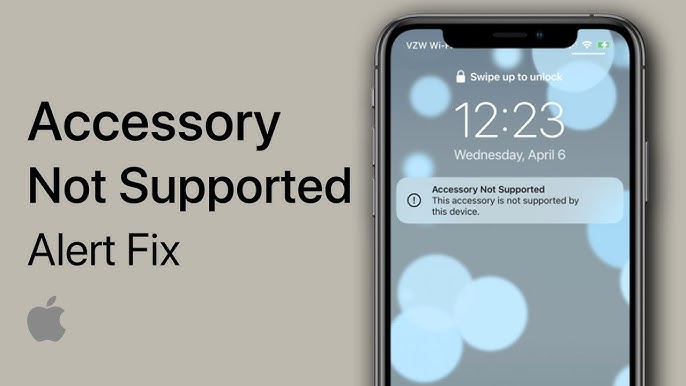
If you are an iPhone or iPad user, you may have encountered the frustrating message: “This accessory may not be supported.” This error typically appears when you connect a charging cable, headphones, or another external device to your Apple device.
While it may seem alarming, this issue is quite common and usually fixable with a few simple troubleshooting steps. In this comprehensive guide, we will explore the causes of this error and provide effective solutions to resolve it.
What Does “This Accessory May Not Be Supported” Mean?
This message appears when your iPhone or iPad cannot verify or communicate properly with a connected accessory. Apple devices are designed to work best with certified accessories, and when something doesn’t meet those standards, the system may block it.
However, the issue is not always about compatibility—it can also result from software glitches, hardware problems, or dirt in the charging port.
Common Causes of the Error
Understanding the root cause helps you apply the correct fix.
1. Non-Certified Accessories
Accessories that are not Apple-certified may trigger this warning.
2. Damaged or Faulty Cable
A worn-out or broken cable can disrupt communication.
3. Dirty Charging Port
Dust or debris in the Lightning port can block connections.
4. Software Bugs
iOS glitches can cause false error messages.
5. Power Supply Issues
Low or unstable power sources may affect accessory detection.
How to Fix “This Accessory May Not Be Supported”
Below are proven methods to resolve this issue.
1. Check Your Cable and Accessory
Start with the simplest fix.
- Inspect the cable for damage
- Try a different cable
- Use an original or certified accessory
Apple recommends using MFi-certified (Made for iPhone) accessories for best compatibility.
2. Clean the Charging Port
Dust and lint can accumulate in the port.
Steps:
- Turn off your device
- Use a soft brush or toothpick
- Gently remove debris
Avoid using metal objects, as they can damage the port.
3. Restart Your Device
A quick restart can resolve temporary glitches.
Steps:
- Hold the power button
- Slide to power off
- Turn it back on
Reconnect the accessory after restarting.
4. Update iOS
Software updates often fix bugs causing this error.
Steps:
- Open Settings
- Go to General → Software Update
- Install available updates
Keeping your device updated ensures better compatibility.
5. Try a Different Power Source
Sometimes the issue lies in the power supply.
- Use a wall charger instead of a laptop
- Avoid low-quality USB hubs
- Try a different outlet
Stable power helps the device recognize accessories properly.
6. Unlock Your Device
Some accessories only work when the device is unlocked.
- Unlock your iPhone
- Connect the accessory again
This simple step can sometimes resolve the issue instantly.
7. Check for Moisture
If your device detects moisture in the port, it may block connections.
- Let the device dry completely
- Avoid charging in humid environments
Modern iPhones include moisture detection for safety.
8. Reset Settings
If the problem persists, resetting settings may help.
Steps:
- Go to Settings
- Tap General → Transfer or Reset iPhone
- Select Reset → Reset All Settings
This will not delete your data but will reset system configurations.
9. Use Airplane Mode Trick
This workaround sometimes resolves detection issues.
Steps:
- Enable Airplane Mode
- Connect the accessory
- Disable Airplane Mode
This refreshes network and hardware connections.
10. Check for Hardware Damage
If none of the above works:
- Inspect the charging port
- Look for bent pins
- Test with multiple accessories
You may need professional repair if hardware is damaged.
Advanced Troubleshooting
For persistent issues, try these advanced fixes.
Restore Your Device
A full restore can eliminate deep software problems.
Steps:
- Back up your data
- Connect to a computer
- Use Finder or iTunes to restore
This reinstalls iOS and removes system errors.
DFU Mode Restore
Device Firmware Update (DFU) mode is a deeper restore option.
- Connect your device to a computer
- Enter DFU mode
- Restore using iTunes or Finder
Use this only if standard restore fails.
How to Prevent This Error
Prevention is key to avoiding recurring issues.
Use Certified Accessories
Always choose MFi-certified cables and chargers.
Keep Ports Clean
Regularly check and clean your charging port.
Avoid Cheap Chargers
Low-quality accessories often cause compatibility problems.
Update Regularly
Keep your iOS version up to date.
Handle Cables Carefully
Avoid bending or pulling cables excessively.
When to Replace Your Accessories
You should consider replacing your cable if:
- It shows visible wear
- Charging is inconsistent
- The error appears frequently
Investing in quality accessories saves time and frustration.
When to Seek Professional Help
If the error persists despite all fixes, it may indicate:
- Internal hardware damage
- Faulty charging port
- Logic board issues
In such cases, visit an Apple Store or authorized service provider.
Real-World Example
Imagine you plug in your iPhone before bed, only to see the error message. After checking, you realize your cable is frayed near the connector. Replacing it with a certified cable instantly resolves the issue.
This scenario highlights how simple causes can lead to frustrating errors—and how easy they can be to fix.
Frequently Asked Questions
Is this error dangerous?
No, but it may prevent proper charging or accessory use.
Can I ignore the message?
Sometimes, but it’s best to fix the underlying issue.
Does this mean my device is broken?
Not necessarily. Most cases are caused by cables or minor issues.
Conclusion
The “This accessory may not be supported” error can be frustrating, but it is usually easy to fix. From checking your cable and cleaning the charging port to updating iOS and resetting settings, there are many effective solutions available.
By following this guide, you can quickly resolve the issue and prevent it from happening again. Always use high-quality accessories, maintain your device properly, and stay updated with the latest software to ensure a smooth and reliable experience.
With the right approach, you can keep your iPhone running flawlessly and avoid interruptions caused by accessory compatibility issues.