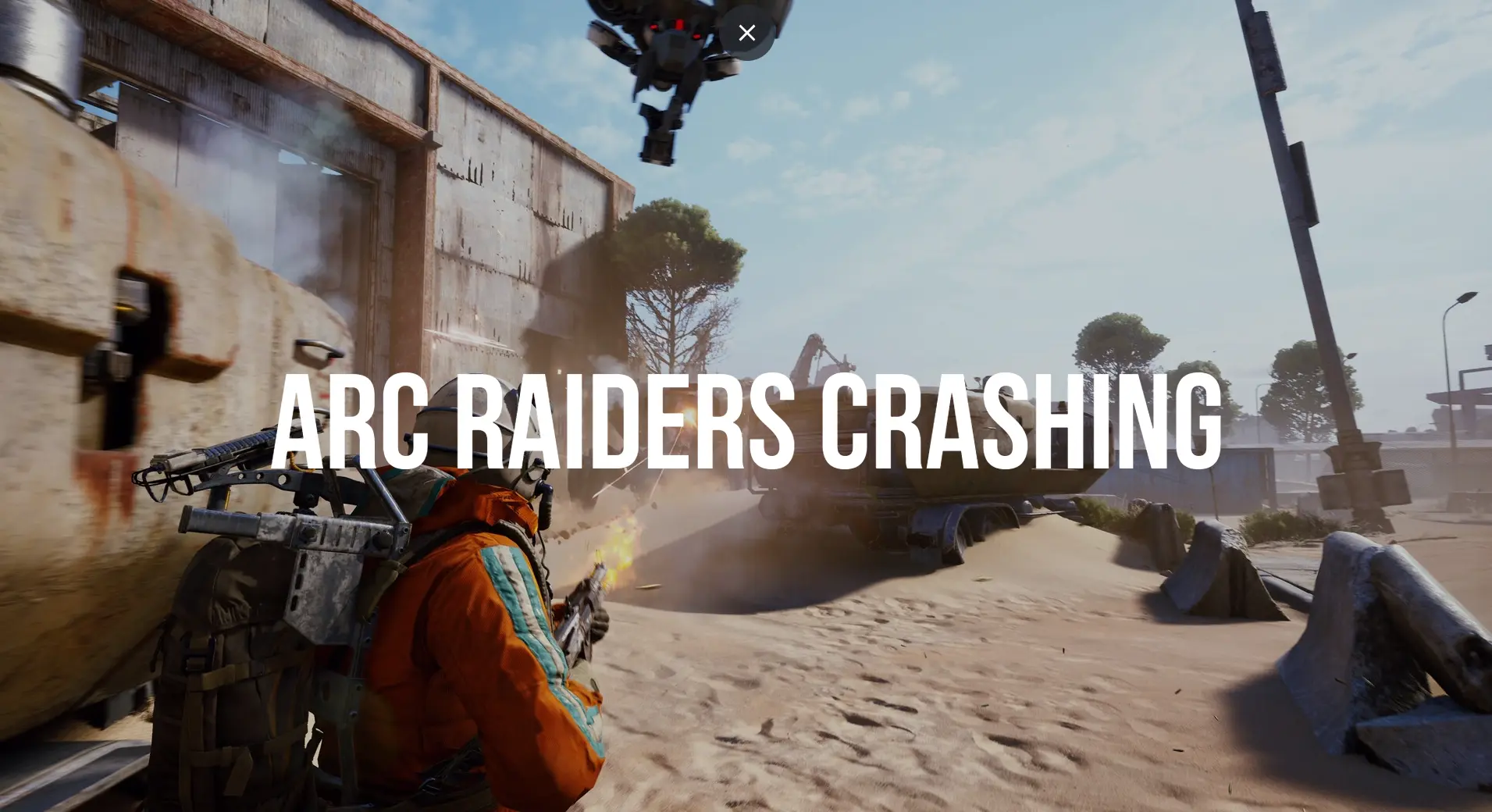
ARC Raiders is an exciting cooperative shooter that delivers intense action, immersive environments, and dynamic gameplay. However, like many modern games, players may encounter frustrating issues such as crashing, freezing, or sudden performance drops. These problems can interrupt gameplay and reduce overall enjoyment.
If you’re experiencing crashes or freezing in ARC Raiders, don’t worry. This comprehensive guide will walk you through all the effective methods to fix these issues and optimize your gaming experience.
Why ARC Raiders Keeps Crashing or Freezing
Before applying fixes, it’s important to understand the possible causes. Common reasons include:
- Outdated graphics drivers
- Corrupted game files
- Insufficient system requirements
- Background applications consuming resources
- Overheating hardware
- Software conflicts or bugs
- Unstable internet connection (for online gameplay)
Identifying the root cause will help you apply the most effective solution.
Check System Requirements First
Ensure your PC meets the minimum and recommended requirements for ARC Raiders.
Minimum Requirements (Estimated)
- OS: Windows 10/11
- CPU: Intel Core i5 or equivalent
- RAM: 8 GB
- GPU: GTX 1060 or similar
- Storage: 50 GB
Recommended Requirements
- CPU: Intel Core i7 or higher
- RAM: 16 GB
- GPU: RTX 2060 or better
- SSD storage
If your system is below these specs, crashes and freezing are more likely.
Method 1: Update Graphics Drivers
Outdated or faulty GPU drivers are a major cause of crashes.
Steps:
- Open Device Manager
- Expand Display Adapters
- Right-click your GPU
- Select Update driver
Alternatively, download the latest drivers from NVIDIA or AMD websites.
Method 2: Verify Game Files
Corrupted or missing files can cause instability.
Steps (Steam/Epic Games):
- Open your game launcher
- Go to your Library
- Right-click ARC Raiders
- Select Properties
- Click Verify integrity of game files
This will repair damaged files automatically.
Method 3: Lower Graphics Settings
High graphics settings can overload your system.
Recommended Adjustments:
- Lower resolution
- Reduce texture quality
- Disable motion blur
- Turn off ray tracing
- Set shadows to medium or low
This can significantly improve stability and performance.
Method 4: Close Background Applications
Background programs consume CPU, RAM, and GPU resources.
Steps:
- Press Ctrl + Shift + Esc
- Open Task Manager
- End unnecessary processes
Focus on closing apps like browsers, overlays, or heavy software.
Method 5: Run the Game as Administrator
Running with admin privileges can resolve permission issues.
Steps:
- Right-click the game executable
- Select Properties
- Go to Compatibility
- Check Run as administrator
Method 6: Disable Fullscreen Optimization
Windows fullscreen optimization can sometimes cause crashes.
Steps:
- Right-click the game file
- Select Properties
- Go to Compatibility
- Check Disable fullscreen optimizations
Method 7: Update Windows
Keeping Windows updated ensures compatibility with modern games.
Steps:
- Open Settings
- Go to Windows Update
- Click Check for updates
- Install available updates
Method 8: Check for Overheating
Overheating can cause sudden crashes or freezes.
Signs:
- Loud fan noise
- High CPU/GPU temperatures
- System shutdowns
Solutions:
- Clean dust from fans
- Use cooling pads (for laptops)
- Improve airflow
- Monitor temperatures using software
Method 9: Reinstall the Game
If nothing works, reinstalling may fix deep issues.
Steps:
- Uninstall ARC Raiders
- Restart your PC
- Reinstall the game from the official launcher
Method 10: Disable Overlays
Game overlays can interfere with performance.
Disable:
- Steam Overlay
- Discord Overlay
- NVIDIA GeForce Experience overlay
Method 11: Adjust Virtual Memory
Increasing virtual memory can improve stability.
Steps:
- Open Advanced system settings
- Go to Performance Settings
- Click Advanced
- Adjust Virtual Memory
Set it to system-managed or increase manually.
Method 12: Check Internet Connection
Since ARC Raiders is an online game, network issues can cause freezing.
Tips:
- Use wired connection instead of Wi-Fi
- Restart your router
- Close bandwidth-heavy apps
Method 13: Update DirectX and Visual C++ Redistributables
Missing or outdated components can cause crashes.
Install:
- Latest DirectX version
- Microsoft Visual C++ packages
Method 14: Disable Antivirus Temporarily
Some antivirus programs may block game files.
Steps:
- Temporarily disable antivirus
- Add ARC Raiders to exclusions list
Method 15: Run in Windowed Mode
Switching display mode can improve stability.
Steps:
- Open game settings
- Change to Windowed or Borderless mode
Common Error Fixes
Crash on Startup
- Verify game files
- Update drivers
- Run as administrator
Random Freezing
- Lower graphics settings
- Close background apps
- Check overheating
Black Screen Issues
- Update GPU drivers
- Disable overlays
- Adjust resolution
Performance Optimization Tips
1. Use SSD Storage
Faster load times and smoother gameplay.
2. Upgrade RAM
16 GB is ideal for modern games.
3. Keep Drivers Updated
Ensures compatibility and performance.
4. Optimize Power Settings
Set to High Performance mode.
How Long Do Fixes Take?
- Driver updates: 5–10 minutes
- File verification: 10–20 minutes
- Reinstallation: 30–60 minutes
- System tweaks: 5–15 minutes
Frequently Asked Questions
Why does ARC Raiders crash on launch?
Usually due to corrupted files, outdated drivers, or missing dependencies.
Can low RAM cause freezing?
Yes, insufficient RAM can lead to stuttering and crashes.
Is it safe to disable antivirus?
Temporarily, yes—but re-enable it after testing.
Will reinstalling fix all issues?
It resolves most file-related problems but not hardware limitations.
Final Thoughts
Crashing and freezing issues in ARC Raiders can be frustrating, but they are often fixable with the right approach. Start with basic troubleshooting like updating drivers and verifying files, then move on to advanced solutions if necessary.
By optimizing your system, adjusting settings, and maintaining your hardware, you can enjoy a smooth and immersive ARC Raiders experience without interruptions.
Gaming should be fun—not frustrating. Follow this guide, apply the fixes, and get back to exploring the world of ARC Raiders with confidence and stability.