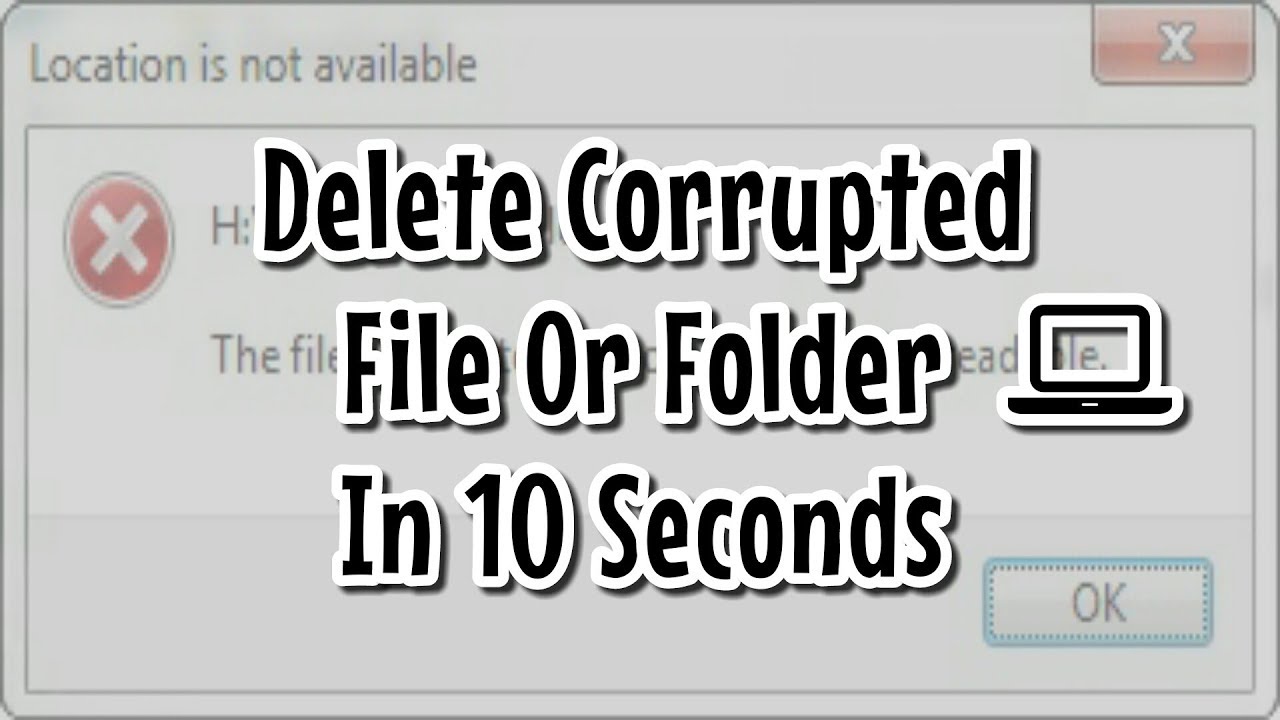
Corrupted files in Windows 11 can be incredibly frustrating. They may refuse to open, display error messages, or even block you from deleting them entirely. Whether caused by system crashes, malware, or disk errors, these problematic files can take up valuable space and disrupt your workflow.
In this complete guide, you’ll learn how to delete corrupted files in Windows 11 using safe and effective methods. From basic deletion attempts to advanced techniques using Command Prompt and Safe Mode, this article covers everything you need to know.
What Are Corrupted Files?
Corrupted files are files that have been damaged or altered in a way that makes them unreadable or unusable by the system. This corruption may affect documents, media files, or even critical system files.
Common Signs of Corrupted Files
- Files won’t open or load properly
- Error messages when accessing files
- File names appear strange or unreadable
- System crashes when opening specific files
- Inability to delete or move files
Why Can’t You Delete Corrupted Files?
In many cases, Windows 11 prevents you from deleting corrupted files due to:
- File system errors
- The file being in use by another process
- Permission restrictions
- Bad sectors on the hard drive
- Malware interference
Understanding the cause helps you choose the most effective solution.
Before You Delete Corrupted Files
Before proceeding, take a few precautions:
1. Backup Important Data
Ensure that the corrupted file is not critical. If possible, back up recoverable data.
2. Scan for Malware
Run a full antivirus scan to rule out malicious interference.
3. Close All Programs
Make sure no applications are using the file.
Method 1: Try Simple Deletion
Start with the basic method:
Steps:
- Right-click the corrupted file
- Click Delete
- Empty the Recycle Bin
If the file deletes successfully, no further action is needed.
Method 2: Use Command Prompt (CMD)
If standard deletion fails, Command Prompt can force delete corrupted files.
Steps:
- Search for Command Prompt
- Right-click and select Run as administrator
- Use the following command:
del /f /q /a "C:\Path\to\file"
Explanation:
/f= Force delete/q= Quiet mode (no confirmation)/a= Selects files with any attributes
Method 3: Delete Files in Safe Mode
Safe Mode starts Windows with minimal processes, making it easier to delete stubborn files.
Steps:
- Open Settings
- Go to System > Recovery
- Click Restart now under Advanced startup
- Navigate to Troubleshoot > Advanced Options > Startup Settings
- Restart and select Safe Mode
Once in Safe Mode, locate and delete the corrupted file.
Method 4: Use CHKDSK to Fix Disk Errors
Disk errors can prevent file deletion. Running CHKDSK can resolve these issues.
Steps:
- Open Command Prompt as administrator
- Type:
chkdsk C: /f /r - Press Enter
- Restart your PC if prompted
What It Does:
- Fixes file system errors
- Repairs bad sectors
- Restores disk integrity
Method 5: Use PowerShell
PowerShell offers another way to remove corrupted files.
Steps:
- Open Windows PowerShell as Administrator
- Run the command:
Remove-Item -Path "C:\Path\to\file" -Force
This method is especially useful when CMD fails.
Method 6: Take Ownership of the File
Sometimes, permission issues prevent deletion.
Steps:
- Right-click the file
- Select Properties
- Go to Security > Advanced
- Click Change next to Owner
- Enter your username and confirm
- Apply changes and try deleting again
Method 7: Use Disk Cleanup
Temporary corrupted files can be removed using Disk Cleanup.
Steps:
- Search for Disk Cleanup
- Select your drive
- Check unnecessary file categories
- Click OK and confirm deletion
Method 8: Use Third-Party Tools
If built-in methods fail, third-party tools can help delete stubborn files.
Popular Tools:
- Unlocker
- CCleaner
- LockHunter
These tools can unlock and remove files that Windows cannot handle.
Method 9: Scan and Remove Malware
Corrupted files caused by malware may require removal of the infection first.
Steps:
- Open Windows Security
- Go to Virus & Threat Protection
- Select Full Scan
- Remove detected threats
After cleaning your system, try deleting the file again.
Method 10: Reset Windows 11
If corrupted files are widespread, resetting Windows may be necessary.
Steps:
- Open Settings
- Go to System > Recovery
- Click Reset this PC
- Choose:
- Keep my files
- Remove everything
What If You Delete the Wrong File?
If you accidentally delete an important file:
Recovery Options:
- Restore from Recycle Bin
- Use File History backup
- Use data recovery software
Tips to Prevent File Corruption
1. Avoid Sudden Shutdowns
Always shut down your system properly.
2. Use Reliable Antivirus Software
Protect against malware-related corruption.
3. Keep Your System Updated
Install updates regularly.
4. Check Disk Health
Run CHKDSK periodically.
5. Use Quality Storage Devices
Low-quality drives are more prone to errors.
Common Errors When Deleting Corrupted Files
“File in Use” Error
- Close related applications
- Restart your PC
“Access Denied” Error
- Take ownership of the file
- Run as administrator
“File Not Found” Error
- Use CMD or PowerShell
How Long Does It Take to Delete Corrupted Files?
- Simple deletion: Instant
- CMD/PowerShell: Seconds
- CHKDSK scan: 10–60 minutes
- Safe Mode deletion: A few minutes
Frequently Asked Questions
Can corrupted files harm my PC?
Yes, especially if they are system files or malware-infected.
Is it safe to force delete files?
Yes, but only if you are sure the file is not essential.
Can corrupted files be repaired instead of deleted?
Sometimes, using repair tools like SFC or DISM.
Do corrupted files come back?
Not usually, unless the underlying issue persists.
Final Thoughts
Deleting corrupted files in Windows 11 may seem difficult, but with the right tools and techniques, it becomes manageable. Start with simple methods and gradually move to advanced solutions like Command Prompt, Safe Mode, and disk repair tools.
Always take precautions such as backing up data and scanning for malware before making changes. With proper maintenance and safe computing habits, you can prevent file corruption and keep your system running smoothly.
By following this guide, you now have a complete understanding of how to safely and effectively delete corrupted files in Windows 11.