Corrupted system files can cause a wide range of issues in Windows 11, from random crashes and slow performance to apps failing to open or update properly. Fortunately, Microsoft has included several powerful built-in tools that allow users to scan, detect, and repair corrupted files without needing advanced technical knowledge.
In this comprehensive guide, you’ll learn exactly how to check for corrupted files in Windows 11, what causes file corruption, and how to fix it effectively using trusted system tools like System File Checker (SFC), Deployment Image Servicing and Management (DISM), and other troubleshooting methods.
What Are Corrupted Files?
Corrupted files are files that have become damaged or altered in a way that prevents them from functioning correctly. This corruption can affect system files, application files, or even personal data.
When system files are corrupted, Windows 11 may behave unpredictably, showing symptoms such as:
- Frequent system crashes (Blue Screen of Death)
- Applications not opening or crashing unexpectedly
- Slow system performance
- Windows updates failing to install
- Missing or broken features
Common Causes of File Corruption
Understanding the root cause of file corruption can help prevent it in the future. Some of the most common causes include:
1. Sudden Power Loss
Unexpected shutdowns during file operations can interrupt processes and damage files.
2. Malware or Viruses
Malicious software can modify or delete important system files.
3. Disk Errors
Bad sectors on a hard drive or SSD can corrupt stored data.
4. Software Conflicts
Incompatible applications or faulty installations can interfere with system files.
5. Improper System Shutdown
Forcefully turning off your PC can lead to incomplete file writes.
Method 1: Use System File Checker (SFC)
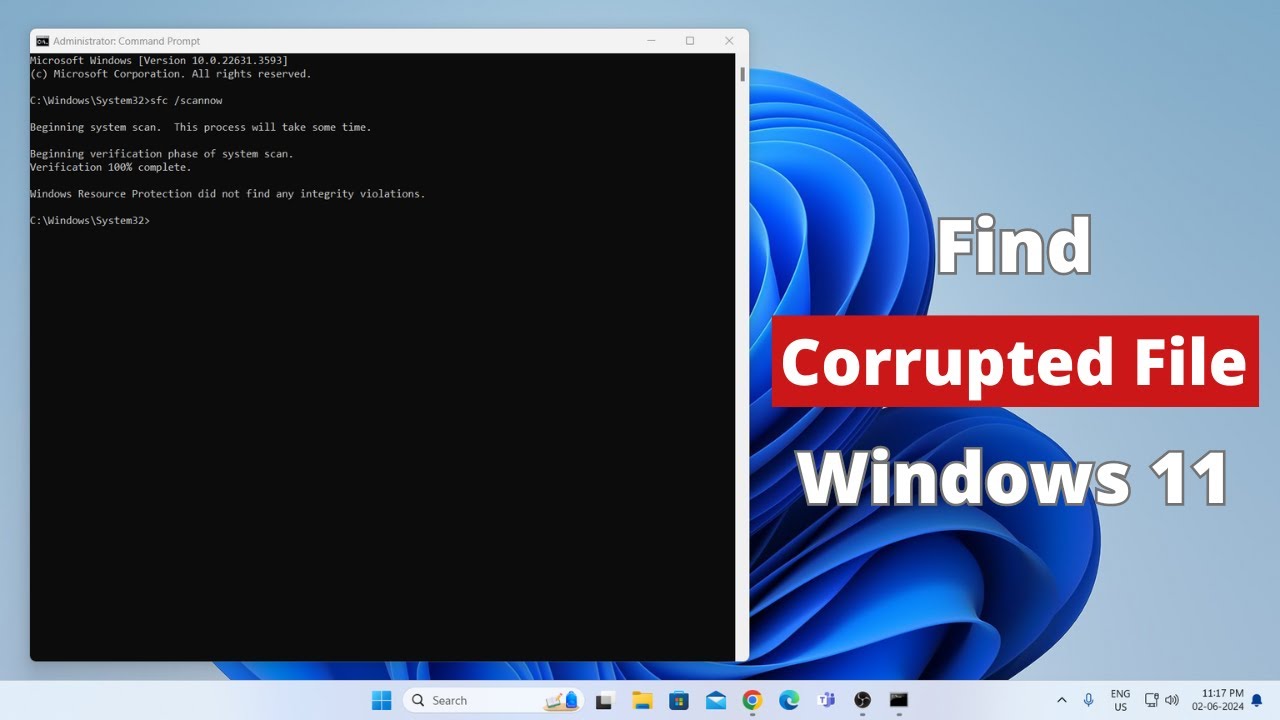
The System File Checker is one of the most effective tools to scan and repair corrupted system files in Windows 11.
Steps to Run SFC Scan
- Click on the Start menu
- Type Command Prompt
- Right-click and select Run as administrator
- In the Command Prompt window, type:
sfc /scannow - Press Enter and wait for the scan to complete
What Happens During the Scan?
- Windows scans all protected system files
- Corrupted files are automatically replaced with cached copies
- The process may take 10–30 minutes depending on your system
Possible Results
- No integrity violations found: No corruption detected
- Corrupt files repaired: Issues were found and fixed
- Some files could not be repaired: Further action needed (use DISM)
Method 2: Use DISM Tool
If SFC cannot fix all issues, the DISM tool can repair the Windows system image itself.
Steps to Run DISM
- Open Command Prompt as administrator
- Type the following command:
DISM /Online /Cleanup-Image /RestoreHealth - Press Enter and wait for the process to finish
What DISM Does
- Connects to Windows Update servers
- Downloads clean system files
- Repairs the Windows image used by SFC
Important Notes
- Requires an internet connection
- Can take 15–30 minutes or longer
After running DISM, it is recommended to run the SFC scan again to ensure all issues are fixed.
Method 3: Check Disk Utility (CHKDSK)
Disk errors can also lead to file corruption. The Check Disk utility scans your storage drive for errors and fixes them.
Steps to Run CHKDSK
- Open Command Prompt as administrator
- Type:
chkdsk C: /f /r - Press Enter
- If prompted, type Y and restart your computer
What CHKDSK Does
- Scans for bad sectors
- Repairs file system errors
- Recovers readable information from damaged sectors
Method 4: Use Windows Security Scan
Sometimes file corruption is caused by malware. Running a full system scan can help detect and remove threats.
Steps to Scan for Viruses
- Open Settings
- Go to Privacy & Security
- Click Windows Security
- Select Virus & Threat Protection
- Click Scan Options
- Choose Full Scan and start the scan
Method 5: Restore Your System
If corruption started recently, you can use System Restore to revert your system to a previous working state.
Steps to Perform System Restore
- Search for Create a restore point
- Open the System Properties window
- Click System Restore
- Choose a restore point before the issue began
- Follow the on-screen instructions
Method 6: Reset Windows 11
If all else fails, resetting Windows can resolve severe corruption issues.
Reset Options
- Keep my files: Removes apps but keeps personal data
- Remove everything: Full reset
Steps to Reset
- Go to Settings
- Click System
- Select Recovery
- Click Reset this PC
- Choose your preferred option
How to Prevent File Corruption in Windows 11
Prevention is always better than repair. Here are some best practices:
1. Use a UPS (Uninterruptible Power Supply)
Prevents sudden shutdowns during power outages.
2. Install Antivirus Software
Protects against malware that can corrupt files.
3. Keep Windows Updated
Updates fix bugs and improve system stability.
4. Avoid Forced Shutdowns
Always shut down your system properly.
5. Regularly Check Disk Health
Run CHKDSK periodically to catch early issues.
6. Backup Your Data
Use cloud storage or external drives to avoid data loss.
Signs You Should Check for Corrupted Files
You should run scans if you notice:
- Programs crashing frequently
- Files not opening properly
- System lagging unusually
- Windows updates failing repeatedly
- Error messages related to missing files
SFC vs DISM: What’s the Difference?
| Feature | SFC | DISM |
|---|---|---|
| Function | Repairs system files | Repairs system image |
| Internet Required | No | Yes |
| Speed | Faster | Slower |
| Use Case | First step | When SFC fails |
Frequently Asked Questions
Is it safe to run SFC and DISM?
Yes, both tools are built into Windows and safe to use.
How often should I scan for corrupted files?
Once a month or whenever you notice system issues.
Can corrupted files be recovered?
Most system files can be repaired, but personal files may require backups.
Does resetting Windows remove corruption?
Yes, especially with a full reset, but it removes apps and settings.
Final Thoughts
Checking for corrupted files in Windows 11 is an essential maintenance task that can significantly improve system performance and stability. With tools like SFC, DISM, and CHKDSK, even non-technical users can diagnose and fix problems quickly.
By following the steps outlined in this guide, you can ensure your system remains healthy and avoid potential data loss or system crashes. Regular maintenance, combined with good usage habits, will keep your Windows 11 experience smooth and reliable.
If you’re experiencing persistent issues, don’t ignore them—run these tools and take control of your system’s health today.