The Command Prompt is one of the most powerful tools available in Windows. Whether you’re troubleshooting system issues, managing files, or running advanced commands, knowing how to access the Command Prompt quickly can save you time and effort.
This guide provides a complete overview of how to open Command Prompt in Windows, including multiple methods, shortcuts, and advanced techniques for both beginners and experienced users.
What Is Command Prompt?
Command Prompt is a command-line interface (CLI) program that allows users to interact with the Windows operating system by typing commands instead of using a graphical interface.
It is commonly used for:
- Running system commands
- Troubleshooting issues
- Managing files and directories
- Configuring network settings
- Automating tasks with scripts
Why Use Command Prompt?
Although Windows offers a graphical interface, Command Prompt provides:
- Faster execution of tasks
- Access to advanced system tools
- Greater control over system operations
- Ability to run scripts and batch files
Method 1: Open Command Prompt Using Search
This is the easiest and most common method.
Steps:
- Click the Start menu
- Type Command Prompt or cmd
- Click the result
Tip:
Right-click and select Run as administrator for elevated access.
Method 2: Use Run Dialog Box
A quick keyboard shortcut method.
Steps:
- Press Windows + R
- Type
cmd - Press Enter
Method 3: Open Command Prompt from Start Menu
Steps:
- Click Start
- Navigate to Windows System
- Click Command Prompt
Method 4: Open Command Prompt from File Explorer
Steps:
- Open File Explorer
- Click the address bar
- Type
cmd - Press Enter
This opens Command Prompt in the current directory.
Method 5: Use Keyboard Shortcut (Advanced)
Steps:
- Press Windows + X
- Select Windows Terminal or Command Prompt
Method 6: Open Command Prompt as Administrator
Some commands require elevated privileges.
Steps:
- Search for cmd
- Right-click Command Prompt
- Select Run as administrator
Method 7: Open Command Prompt from Task Manager
Steps:
- Press Ctrl + Shift + Esc
- Click File > Run new task
- Type
cmd - Check Create this task with administrative privileges
- Click OK
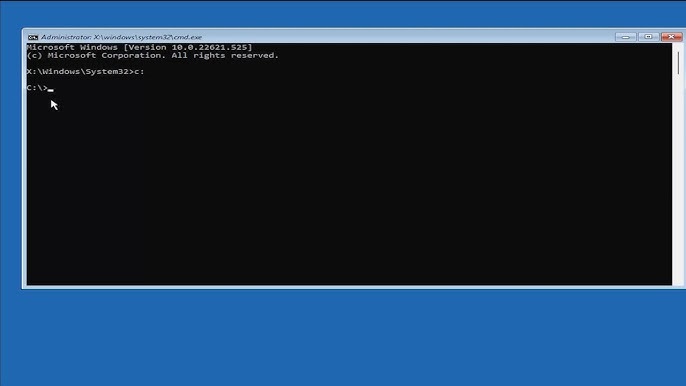
Method 8: Open Command Prompt During Boot
Useful for troubleshooting.
Steps:
- Restart your computer
- Access Advanced Startup Options
- Select Troubleshoot > Advanced Options > Command Prompt
Method 9: Create a Desktop Shortcut
For quick access.
Steps:
- Right-click desktop
- Select New > Shortcut
- Type
cmd.exe - Click Next
- Name the shortcut
Method 10: Pin Command Prompt to Taskbar
Steps:
- Open Command Prompt
- Right-click its icon on the taskbar
- Select Pin to taskbar
Understanding Command Prompt Interface
When you open Command Prompt, you’ll see:
- Command line prompt (e.g.,
C:\Users\YourName>) - Cursor for typing commands
Basic Commands to Try
1. Check Directory
dir
2. Change Directory
cd foldername
3. Clear Screen
cls
4. Check IP Address
ipconfig
Command Prompt vs PowerShell
Command Prompt:
- Simpler
- Lightweight
- Good for basic tasks
PowerShell:
- More powerful
- Supports scripting
- Advanced automation
When to Use Command Prompt
- Fix system errors
- Run diagnostics
- Manage files
- Configure networks
- Execute scripts
Common Issues and Fixes
Command Prompt Not Opening
- Restart your PC
- Check system files
- Use Task Manager method
Access Denied Error
- Run as administrator
Security Tips
- Avoid running unknown commands
- Use admin access carefully
- Verify commands before execution
Advanced Tips
Run Commands as Admin from Run Box
Press Ctrl + Shift + Enter after typing cmd.
Open in Specific Folder
Use File Explorer method.
Benefits of Learning Command Prompt
- Faster troubleshooting
- Better system control
- Increased productivity
- Useful IT skill
Final Thoughts
The Command Prompt is a powerful and essential tool in Windows that every user should know how to access. Whether you’re a beginner or an advanced user, mastering the different ways to open Command Prompt can greatly improve your efficiency.
From simple search methods to advanced boot options, this guide covers everything you need to get started. By practicing these methods and learning basic commands, you’ll unlock a new level of control over your system.
Start exploring Command Prompt today and discover how much more you can do with your Windows computer.