Your laptop’s serial number is one of the most important identifiers tied to your device. Whether you need it for warranty claims, technical support, or asset tracking, not being able to find it can be frustrating. Fortunately, there are several quick and reliable ways to locate your laptop’s serial number—even if the physical label is missing.
In this complete guide, you’ll learn how to find your laptop serial number using simple Command Prompt commands, system tools, BIOS settings, and physical inspection methods.
What Is a Laptop Serial Number?
A serial number is a unique identifier assigned by the manufacturer to your specific device. No two laptops share the same serial number, making it essential for identification.
Why It Matters:
- Warranty verification
- Technical support
- Device registration
- Theft recovery
- Inventory management
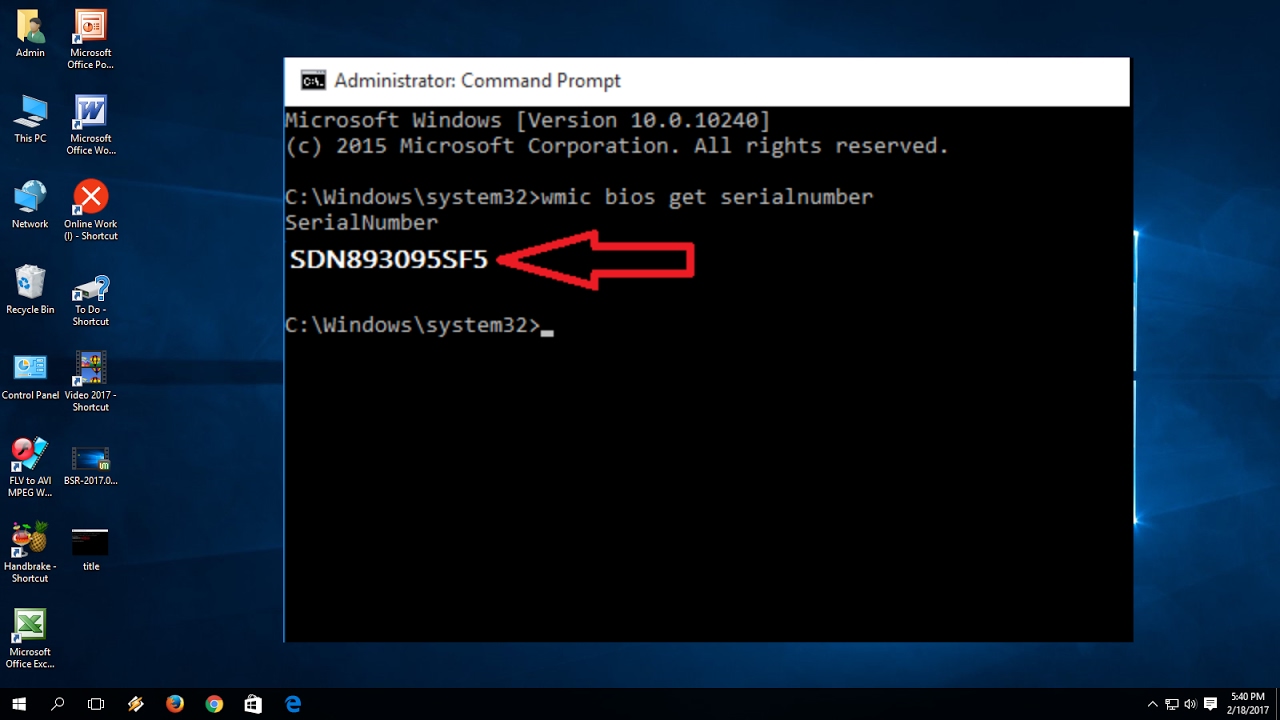
Method 1: Find Serial Number Using Command Prompt
This is one of the fastest and easiest methods.
Steps:
- Press Windows + R
- Type
cmdand press Enter - In Command Prompt, type:
wmic bios get serialnumber - Press Enter
Your serial number will be displayed instantly.
Advantages:
- Quick and accurate
- No need to open your device
- Works on most Windows laptops
Method 2: Check the Physical Label
Most laptops have a sticker with the serial number.
Common Locations:
- Bottom of the laptop
- Under the battery (older models)
- Inside the battery compartment
- Near the keyboard or palm rest
Tips:
- Look for labels marked S/N, Serial, or SN
- Clean the surface if the label is faded
Method 3: Use System Information Tool
Windows includes a built-in tool for hardware details.
Steps:
- Press Windows + R
- Type
msinfo32 - Press Enter
- Look for System Serial Number
Method 4: Check BIOS or UEFI
The BIOS/UEFI firmware stores system information.
Steps:
- Restart your laptop
- Press the BIOS key (F2, F10, DEL, or ESC)
- Navigate to System Information
- Locate the serial number
Method 5: Use PowerShell
PowerShell provides another command-line option.
Steps:
- Right-click Start and select Windows PowerShell
- Type:
Get-WmiObject win32_bios | Select SerialNumber - Press Enter
Method 6: Check Manufacturer Software
Many brands include pre-installed tools.
Examples:
- HP Support Assistant
- Dell SupportAssist
- Lenovo Vantage
These apps display system details, including the serial number.
Method 7: Check Original Packaging or Receipt
If you still have the box or purchase receipt:
- Look for barcode labels
- Check product documentation
Method 8: Use Command Prompt Alternative
Another useful command:
wmic csproduct get identifyingnumber
This may return the same or related identifier.
What If the Serial Number Is Missing?
Sometimes the serial number may not appear.
Possible Reasons:
- BIOS corruption
- Manufacturer error
- Hardware replacement
- Missing label
How to Fix Missing Serial Number
1. Update BIOS
Updating BIOS may restore missing information.
2. Contact Manufacturer
Provide proof of purchase to retrieve details.
3. Use Third-Party Tools
Hardware diagnostic tools may detect hidden identifiers.
Difference Between Serial Number and Product ID
Serial Number:
- Unique to each device
- Used for warranty and identification
Product ID:
- Shared among similar models
- Used for software licensing
Security Tips
- Do not share your serial number publicly
- Use it only with trusted services
- Keep a backup record
When You Need Your Serial Number
You may need it for:
- Warranty claims
- Technical support
- Software activation
- Insurance documentation
- Device resale
Common Mistakes to Avoid
- Confusing serial number with model number
- Using incorrect commands
- Ignoring BIOS option
- Not checking physical labels
Benefits of Knowing Your Serial Number
- Faster support service
- Accurate device identification
- Easier troubleshooting
- Better asset management
Troubleshooting Tips
Command Not Working
- Run Command Prompt as Administrator
Blank Serial Number
- Try PowerShell or BIOS method
Label Worn Out
- Use digital methods
Advanced Tips for IT Users
Use Remote Commands
Admins can retrieve serial numbers remotely using scripts.
Asset Management Tools
Use enterprise tools to track devices.
Final Thoughts
Not being able to find your laptop serial number can be inconvenient, but it’s rarely a dead end. With multiple methods available—from simple Command Prompt commands to BIOS access—you can quickly locate this essential piece of information.
Start with the easiest option, like using Command Prompt, and move to physical or advanced methods if needed. In most cases, one of these approaches will give you the answer within minutes.
Keeping a record of your serial number is always a good idea. It saves time, simplifies support requests, and ensures you’re prepared for any situation involving your device.
Now that you know where to look, finding your laptop serial number should never be a problem again.