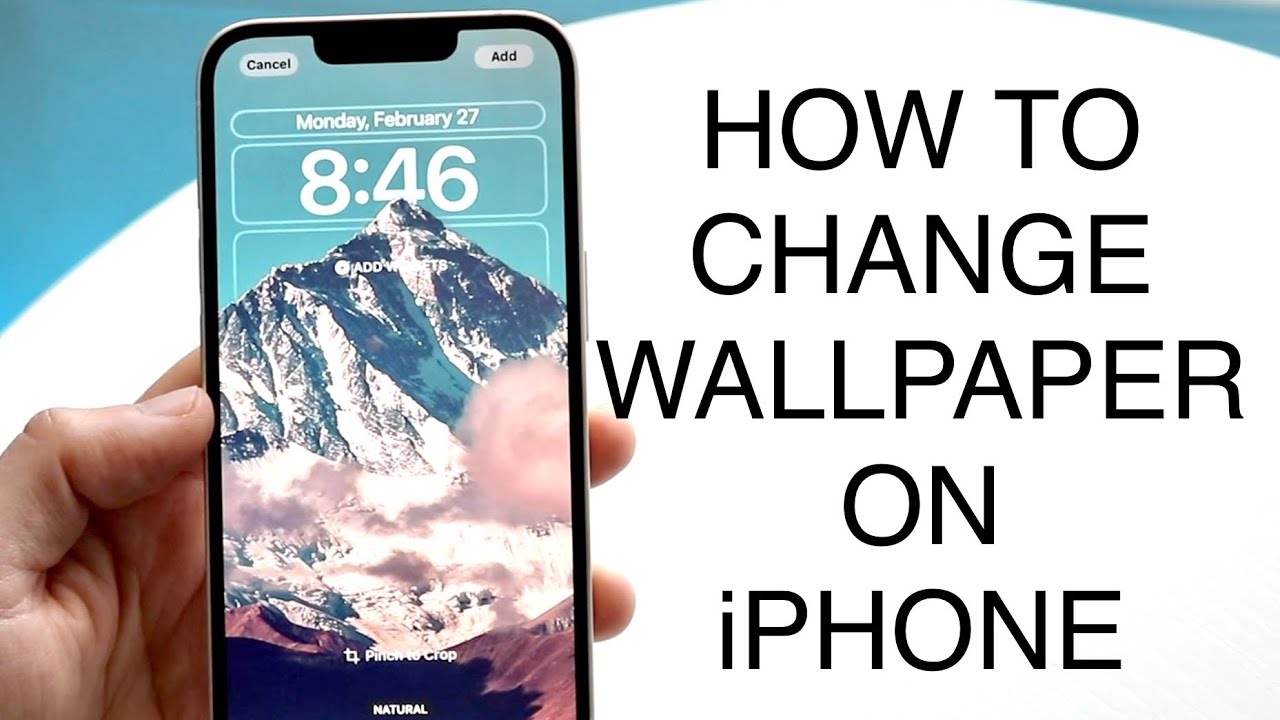
Customizing your iPhone wallpaper is one of the easiest ways to personalize your device and make it feel uniquely yours. Whether you want a stunning landscape, a favorite memory, or a minimalist design, Apple provides several built-in and customizable options to set wallpapers for both your Lock Screen and Home Screen.
In this comprehensive guide, you’ll learn how to set a wallpaper on iPhone, explore different customization options, and discover tips to make your screen look visually appealing and organized.
Why Customize Your iPhone Wallpaper?
Your wallpaper is the first thing you see when you unlock your phone. Customizing it offers several benefits:
- Personal expression and style
- Better visual organization
- Improved readability of icons and widgets
- Enhanced user experience
With the latest iOS updates, Apple has introduced even more advanced customization features.
Types of Wallpapers on iPhone
Before setting a wallpaper, it’s helpful to understand the available types:
1. Static Wallpapers
Still images such as photos or downloaded pictures.
2. Dynamic Wallpapers
Animated backgrounds provided by Apple.
3. Live Wallpapers
Interactive wallpapers that move when you press the screen (available on supported models).
Method 1: Set Wallpaper Using Settings
This is the most direct method.
Steps:
- Open Settings
- Tap Wallpaper
- Select Add New Wallpaper
- Choose from:
- Photos
- Wallpaper gallery
- Live or dynamic options
- Adjust the image (zoom, position)
- Tap Set as Wallpaper Pair or customize separately
- Choose:
- Lock Screen
- Home Screen
- Both
Method 2: Set Wallpaper from Photos App
You can use any photo from your gallery.
Steps:
- Open the Photos app
- Select the image you want
- Tap the Share icon
- Choose Use as Wallpaper
- Adjust positioning
- Tap Set
Method 3: Customize Lock Screen (iOS 16 and Later)
Apple introduced advanced Lock Screen customization.
Steps:
- Press and hold the Lock Screen
- Tap Customize
- Select Lock Screen
- Add widgets, fonts, and colors
- Tap Done
Setting Different Wallpapers for Lock and Home Screens
You can use separate wallpapers for each screen.
Steps:
- Go to Settings > Wallpaper
- Tap Customize
- Choose different images for:
- Lock Screen
- Home Screen
This helps improve visibility and organization.
Using Live Wallpapers
Live wallpapers add motion to your screen.
Steps:
- Choose a Live Photo
- Set it as wallpaper
- Enable Live Photo option
- Press and hold the screen to animate
Tips for Choosing the Perfect Wallpaper
1. Use High-Resolution Images
Avoid blurry or pixelated backgrounds.
2. Keep It Simple
Busy images can make icons hard to see.
3. Match Your Theme
Choose colors that complement your app icons.
4. Consider Dark Mode
Use darker wallpapers to reduce eye strain.
Where to Find iPhone Wallpapers
You can find wallpapers from:
- Built-in iOS gallery
- Photography apps
- Wallpaper apps
- Online platforms
Look for images optimized for your iPhone resolution.
Adjusting Wallpaper Position and Zoom
When setting a wallpaper, you can:
- Pinch to zoom in or out
- Drag to reposition
- Enable or disable perspective zoom
This ensures the image fits perfectly.
Using Depth Effect (iOS 16+)
Depth effect creates a layered look.
Steps:
- Choose a compatible image
- Enable Depth Effect
- Adjust subject placement
This feature adds a modern aesthetic.
Common Issues and Fixes
Wallpaper Not Applying
- Restart your device
- Check iOS version
- Try a different image
Image Looks Blurry
- Use higher resolution images
- Avoid excessive zoom
Live Wallpaper Not Working
- Ensure device supports Live Photos
- Enable Live option
How to Reset Wallpaper
If you want to revert changes:
Steps:
- Go to Settings > Wallpaper
- Choose a default wallpaper
- Apply changes
Organizing Your Home Screen with Wallpaper
A good wallpaper improves usability:
- Use minimal backgrounds for better icon visibility
- Align widgets with wallpaper design
- Create themed layouts
Advanced Customization Ideas
Use Gradient Backgrounds
Clean and modern look.
Use Personal Photos
Make your device more meaningful.
Use Aesthetic Themes
Match icons, widgets, and wallpaper.
Benefits of Custom Wallpapers
- Personalization
- Improved user experience
- Better visual clarity
- Enhanced creativity
Security and Privacy Tips
- Avoid sensitive images
- Use neutral wallpapers in public settings
- Lock your device for privacy
Final Thoughts
Setting a wallpaper on your iPhone is a simple yet powerful way to personalize your device. With multiple methods and customization options, you can create a unique look that reflects your style and enhances usability.
Whether you prefer a clean minimalist design, a vibrant photo, or a dynamic wallpaper, the steps in this guide will help you achieve the perfect setup.
Take advantage of iOS features like Lock Screen customization, widgets, and depth effects to transform your iPhone into a visually stunning and functional device.
Start experimenting today and give your iPhone a fresh new look that truly stands out.