Protecting sensitive data has become more important than ever, especially when using portable storage devices like USB flash drives and external hard disks. These devices are convenient but also vulnerable to loss, theft, or unauthorized access. Fortunately, BitLocker offers a powerful solution to secure your data—even on removable drives.
With a feature known as BitLocker To Go, users can encrypt removable storage devices, ensuring that files remain protected wherever they go. In this detailed guide, you will learn how to enable or disable BitLocker on removable data drives in Windows 11 and Windows 10.
What Is BitLocker To Go?
BitLocker To Go is an extension of BitLocker that allows encryption of removable storage devices such as:
- USB flash drives
- External hard drives
- SD cards
Once enabled, the data on the device is encrypted and can only be accessed with a password or recovery key.
Why Use BitLocker on Removable Drives?
Using BitLocker To Go provides several benefits:
1. Data Security
Protects sensitive files from unauthorized access.
2. Portability Protection
Keeps data safe even if the device is lost or stolen.
3. Compliance
Helps meet data protection regulations.
4. Ease of Use
Integrated into Windows with a user-friendly interface.
Requirements for Using BitLocker To Go
Before enabling BitLocker, ensure:
- You are running Windows 11 or Windows 10 (Pro, Enterprise, or Education editions)
- You have administrator privileges
- The removable drive is properly connected
- The drive is formatted (preferably NTFS, FAT32, or exFAT)
How to Enable BitLocker on Removable Drives
Method 1: Using File Explorer
This is the easiest method for most users.
Step-by-Step Instructions:
- Insert your USB or external drive
- Open File Explorer
- Right-click the removable drive
- Select Turn on BitLocker
Step 2: Choose Unlock Method
You will be prompted to choose how to unlock the drive:
- Use a password
- Use a smart card
Most users select password protection.
Step 3: Set a Strong Password
Create a password that includes:
- Uppercase and lowercase letters
- Numbers
- Special characters
Step 4: Save Recovery Key
You can save your recovery key in several ways:
- Save to a file
- Print it
- Save to your Microsoft account
Step 5: Choose Encryption Options
You’ll be asked to choose:
- Encrypt used disk space only (faster)
- Encrypt entire drive (more secure)
Step 6: Start Encryption
Click Start Encrypting and wait for the process to complete.
How to Access a BitLocker-Protected Drive
When you insert the encrypted drive:
- A prompt will appear
- Enter your password
- Click Unlock
You can also choose to automatically unlock on trusted devices.
How to Disable BitLocker on Removable Drives
Disabling BitLocker decrypts the drive and removes protection.
Method 1: Using File Explorer
Steps:
- Insert the encrypted drive
- Unlock it using your password
- Right-click the drive
- Select Manage BitLocker
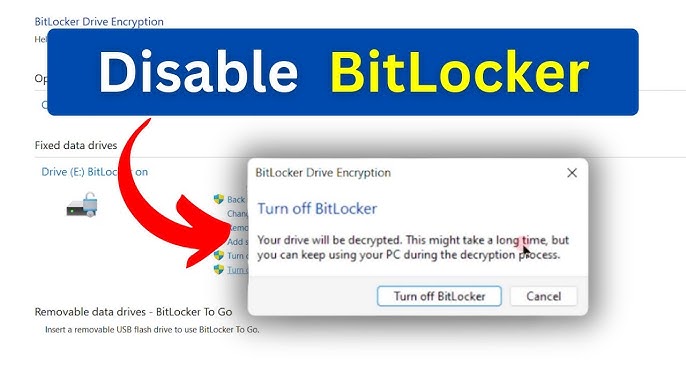
- Click Turn off BitLocker
- Confirm your choice
The system will begin decrypting the drive.
Method 2: Using Control Panel
- Open Control Panel
- Go to System and Security
- Click BitLocker Drive Encryption
- Locate your removable drive
- Click Turn off BitLocker
Method 3: Using Windows PowerShell
Windows PowerShell allows advanced control.
Disable BitLocker Command:
Disable-BitLocker -MountPoint "E:"
Replace E: with your drive letter.
Enable BitLocker Using PowerShell
To enable encryption:
Enable-BitLocker -MountPoint "E:" -EncryptionMethod XtsAes256 -UsedSpaceOnly
Check BitLocker Status
Use PowerShell:
Get-BitLockerVolume
This shows encryption status and protection details.
How to Enable or Disable BitLocker via Group Policy
You can control BitLocker behavior using Group Policy.
Steps:
- Press Win + R
- Type
gpedit.msc - Navigate to:
Computer Configuration > Administrative Templates > Windows Components > BitLocker Drive Encryption > Removable Data Drives
Key Settings:
- Control use of BitLocker on removable drives
- Deny write access to unprotected drives
- Require encryption for removable drives
Enable or Disable Policy:
- Set to Enabled to enforce BitLocker
- Set to Disabled to allow unencrypted drives
Differences Between Fixed and Removable Drive Encryption
| Feature | Fixed Drives | Removable Drives |
|---|---|---|
| Use Case | Internal storage | External storage |
| Encryption Type | Full disk | BitLocker To Go |
| Unlock Method | TPM/PIN | Password/Key |
| Portability | Low | High |
Best Practices for Using BitLocker To Go
1. Use Strong Passwords
Avoid simple or reused passwords.
2. Backup Recovery Keys
Store keys securely in multiple locations.
3. Encrypt Entire Drive
Provides maximum protection.
4. Avoid Public Computers
Only unlock drives on trusted systems.
5. Keep Windows Updated
Ensures compatibility and security.
Common Issues and Troubleshooting
Issue 1: BitLocker Option Missing
Fix:
- Ensure correct Windows edition
- Enable BitLocker feature
Issue 2: Cannot Unlock Drive
Fix:
- Use recovery key
- Check keyboard layout
Issue 3: Slow Encryption
Fix:
- Use “used space only” option
- Ensure USB is not damaged
Issue 4: Drive Not Recognized
Fix:
- Reconnect device
- Update drivers
Security Considerations
Using BitLocker To Go significantly improves data security, but:
- Always protect your recovery key
- Do not share passwords
- Avoid storing passwords on the same device
When Should You Disable BitLocker?
You may want to disable BitLocker if:
- You are selling or transferring the drive
- You no longer need encryption
- Compatibility issues arise
Frequently Asked Questions
Is BitLocker To Go free?
Yes, it is included in supported Windows editions.
Can I use BitLocker on Mac?
Mac can read but not write BitLocker-encrypted drives without third-party tools.
Does BitLocker slow down USB drives?
Slightly, but impact is minimal on modern devices.
Can I recover data without a password?
Only with a recovery key.
Final Thoughts
BitLocker and its extension BitLocker To Go provide a reliable and efficient way to secure removable data drives in Windows 11 and Windows 10.
Whether you’re protecting personal files or sensitive business data, enabling encryption on portable storage devices is a smart move. With multiple methods available—from File Explorer to Windows PowerShell—you can easily manage BitLocker based on your preferences.
By following the steps and best practices outlined in this guide, you can confidently enable or disable BitLocker on removable drives while ensuring your data remains safe and secure at all times.