The BIOS (Basic Input/Output System) is one of the most critical components of any computer. It initializes hardware, manages system startup, and ensures communication between your operating system and physical components. When the BIOS becomes corrupted or fails, your computer may not boot at all—making recovery essential.
Different computer manufacturers implement unique BIOS recovery procedures. In this comprehensive guide, we’ll explore how to recover BIOS on popular brands like HP, ASUS, and Dell. Each brand has its own tools and methods, so understanding these differences can save you time and prevent costly repairs.
What Is BIOS Recovery?
BIOS recovery is the process of restoring corrupted or damaged BIOS firmware to a working state. This is usually required when:
- A BIOS update fails
- The system becomes unbootable
- Firmware is corrupted due to power failure
- Malware or improper configuration damages BIOS
Most modern systems include a built-in recovery mechanism that allows users to restore BIOS without replacing hardware.
Signs That Your BIOS Needs Recovery
Before diving into brand-specific steps, it’s important to recognize the symptoms of a corrupted BIOS:
- Computer won’t boot or shows a black screen
- Continuous beeping sounds during startup
- No display but fans are running
- System stuck in boot loop
- Error messages related to firmware
If you encounter any of these issues, BIOS recovery may be necessary.
General Precautions Before BIOS Recovery
Regardless of your computer brand, always follow these precautions:
- Ensure your device has enough battery or is plugged in
- Avoid interrupting the recovery process
- Use official BIOS files from the manufacturer’s website
- Backup important data if possible
- Disconnect unnecessary peripherals
BIOS Recovery on HP Computers
HP computers come with a built-in BIOS recovery feature that is relatively easy to use.
Method 1: Using HP BIOS Recovery Key Combination
Steps:
- Turn off your computer completely
- Press and hold Windows + B keys
- While holding the keys, press and hold the Power button
- Release the Power button after 2–3 seconds but continue holding Windows + B
- Wait for the BIOS recovery screen to appear
Your system should automatically attempt to restore the BIOS.
Method 2: Recover BIOS Using USB Drive
If the automatic method fails:
Steps:
- On another computer, download the latest BIOS from HP’s official website
- Insert a USB flash drive and format it to FAT32
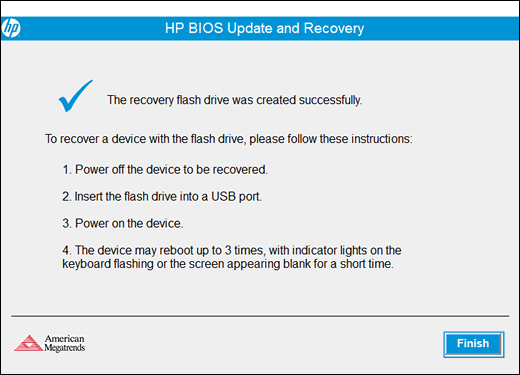
- Run the BIOS file and choose Create Recovery USB
- Insert the USB into the affected HP computer
- Repeat the Windows + B process
HP BIOS Recovery Tips
- Use only official BIOS files
- Ensure USB is properly formatted
- Keep the laptop plugged in during recovery
BIOS Recovery on ASUS Computers
ASUS provides multiple BIOS recovery tools, including ASUS CrashFree BIOS.
Method 1: ASUS CrashFree BIOS
This feature automatically restores BIOS from a USB drive.
Steps:
- Download the correct BIOS file from ASUS support
- Rename the BIOS file as instructed (e.g.,
ASUS.CAP) - Copy it to a FAT32 USB drive
- Insert the USB into your computer
- Power on the system
The system should detect the file and begin recovery automatically.
Method 2: Using EZ Flash Utility
If you can access BIOS:
Steps:
- Enter BIOS by pressing DEL or F2
- Navigate to Tools > ASUS EZ Flash
- Select the BIOS file from USB
- Confirm and start the update/recovery
ASUS BIOS Recovery Tips
- Ensure correct file naming
- Use USB 2.0 ports for compatibility
- Do not power off during flashing
BIOS Recovery on Dell Computers
Dell systems also include robust BIOS recovery options.
Method 1: Dell BIOS Recovery Menu
Steps:
- Turn off your computer
- Press and hold CTRL + ESC
- Plug in the power adapter (for laptops)
- Release keys when BIOS recovery screen appears
You’ll see options like:
- Recover BIOS
- Reset BIOS Settings
Select Recover BIOS and proceed.
Method 2: BIOS Recovery Using USB
Steps:
- Download BIOS file from Dell support
- Rename file (usually to
BIOS_IMG.rcv) - Copy to FAT32 USB drive
- Insert into affected system
- Use CTRL + ESC method to initiate recovery
Dell BIOS Recovery Tips
- Use official BIOS versions only
- Ensure correct file naming
- Keep system powered during recovery
Key Differences Between HP, ASUS, and Dell BIOS Recovery
| Feature | HP | ASUS | Dell |
|---|---|---|---|
| Key Combo | Windows + B | Auto/DEL | CTRL + ESC |
| USB Recovery | Yes | Yes | Yes |
| Built-in Tool | Yes | CrashFree BIOS | BIOS Recovery Menu |
| Ease of Use | Easy | Moderate | Easy |
Common BIOS Recovery Issues and Fixes
1. Recovery Screen Not Appearing
Fix:
- Try different key combinations
- Ensure correct timing when pressing keys
2. USB Not Detected
Fix:
- Format USB to FAT32
- Use a smaller capacity drive (8–16GB)
3. BIOS File Not Recognized
Fix:
- Rename file correctly
- Ensure compatibility with your model
4. Recovery Fails Midway
Fix:
- Restart process
- Re-download BIOS file
Advanced BIOS Recovery Techniques
For advanced users, additional methods include:
Using External Programmers
A hardware programmer can reflash BIOS chips directly.
Replacing BIOS Chip
In extreme cases, replacing the chip may be necessary.
Professional Repair Services
If unsure, consult a technician to avoid damage.
How to Prevent BIOS Corruption
Prevention is always better than recovery. Here are some tips:
- Avoid interrupting BIOS updates
- Use a stable power source
- Download BIOS updates only from official sites
- Do not modify advanced settings unnecessarily
- Keep your system protected from malware
When to Seek Professional Help
Consider expert assistance if:
- Recovery methods fail repeatedly
- You are uncomfortable opening your device
- The system shows no signs of power
- BIOS chip damage is suspected
Frequently Asked Questions
Can BIOS recovery fix a dead computer?
Yes, if the issue is BIOS-related.
Is BIOS recovery safe?
Yes, when done using official tools and instructions.
How long does BIOS recovery take?
Typically 5–15 minutes.
Will BIOS recovery delete my files?
No, it only affects firmware, not storage data.
Final Thoughts
Recovering BIOS may seem intimidating, but with the right knowledge, it becomes manageable. Each manufacturer—HP, ASUS, and Dell—offers unique recovery methods designed to help users restore their systems quickly and safely.
By following the step-by-step instructions outlined in this guide, you can troubleshoot BIOS issues effectively and get your computer back up and running. Always prioritize safety, use official resources, and proceed carefully during recovery.
With proper understanding and preparation, BIOS recovery doesn’t have to be a daunting task—it can be a straightforward solution to complex system problems.