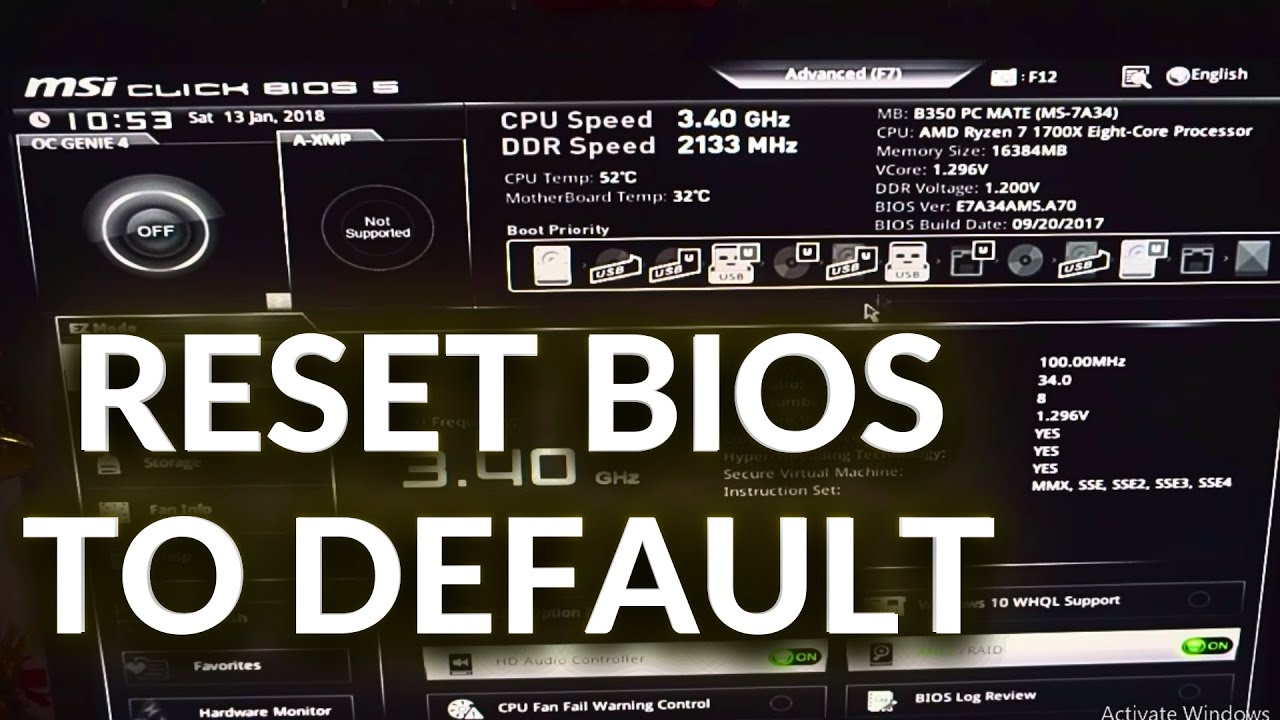
Resetting your BIOS (Basic Input/Output System) to its default settings can solve a wide range of computer issues, from boot errors to hardware conflicts. Whether you’re troubleshooting system instability or simply want to undo changes you made earlier, restoring BIOS to its factory defaults is a safe and effective solution when done correctly.
This in-depth guide will walk you through everything you need to know about resetting BIOS settings on a Windows computer. You’ll learn what BIOS is, why resetting it can help, and the different methods you can use—including step-by-step instructions and expert tips.
What Is BIOS?
BIOS stands for Basic Input/Output System. It is firmware stored on your computer’s motherboard that initializes hardware components before the operating system loads.
The BIOS performs essential tasks such as:
- Checking hardware components during startup (POST)
- Booting the operating system
- Managing system settings like CPU, RAM, and storage devices
Modern systems may use UEFI (Unified Extensible Firmware Interface), which is an updated version of BIOS with more features and a graphical interface.
Why Reset BIOS to Default Settings?
There are several situations where resetting BIOS is beneficial:
1. Fix Boot Problems
Incorrect BIOS settings can prevent your computer from starting properly.
2. Resolve Hardware Conflicts
If you’ve installed new hardware and experience issues, resetting BIOS can help.
3. Undo Overclocking Changes
If your system becomes unstable after overclocking, a reset restores safe settings.
4. Remove Forgotten Settings
If you’ve changed settings and don’t remember them, resetting is the easiest fix.
5. Improve Stability
Returning to default values can eliminate random crashes or performance issues.
Before You Reset BIOS
Before proceeding, consider the following precautions:
- Save any important BIOS settings (e.g., boot order, RAID configuration)
- Ensure your computer is powered off properly
- If using a laptop, make sure the battery is charged
- Avoid interrupting the process once started
Method 1: Reset BIOS from BIOS/UEFI Menu
This is the easiest and safest method.
Step 1: Enter BIOS/UEFI
- Restart your computer
- Press the BIOS key during startup (common keys include F2, F10, DEL, or ESC)
- Wait for the BIOS/UEFI interface to appear
Step 2: Locate Default Settings Option
Look for options like:
- Load Setup Defaults
- Load Optimized Defaults
- Restore Defaults
These are usually found in the Exit or Save & Exit tab.
Step 3: Select and Confirm
- Choose the default settings option
- Confirm when prompted
Step 4: Save and Exit
- Select Save Changes and Exit
- Your computer will restart with default BIOS settings
Method 2: Reset BIOS Using a Keyboard Shortcut
Some systems allow quick resetting using a shortcut:
- Enter BIOS
- Press a key like F9 (varies by manufacturer)
- Confirm the reset
- Save and exit
Method 3: Reset BIOS by Removing CMOS Battery
If you cannot access BIOS, this hardware method works.
What You Need:
- Screwdriver
- Anti-static precautions
Steps:
- Power off your computer
- Unplug all cables
- Open the computer case
- Locate the CMOS battery (small round coin cell)
- Remove the battery carefully
- Wait 5–10 minutes
- Reinsert the battery
- Close the case and power on
This clears BIOS settings and restores defaults.
Method 4: Use CMOS Jumper on Motherboard
Many motherboards include a reset jumper.
Steps:
- Turn off and unplug the computer
- Open the case
- Locate the CMOS jumper (refer to motherboard manual)
- Move the jumper to the reset position
- Wait a few seconds
- Return it to the original position
- Power on the system
Method 5: Reset BIOS via Windows (Advanced Startup)
On modern Windows systems, you can access UEFI settings directly.
Steps:
- Open Settings
- Go to Update & Security
- Click Recovery
- Under Advanced startup, select Restart now
- Choose Troubleshoot > Advanced options > UEFI Firmware Settings
- Click Restart
- Enter BIOS and reset to defaults
Differences Between BIOS and UEFI Reset
| Feature | BIOS | UEFI |
|---|---|---|
| Interface | Text-based | Graphical |
| Navigation | Keyboard | Mouse + Keyboard |
| Reset Option | Basic | More advanced |
| Speed | Slower | Faster |
What Happens After Resetting BIOS?
After resetting:
- Boot order returns to default
- Overclocking settings are removed
- Hardware settings revert to factory values
- System time and date may reset
You may need to reconfigure:
- Boot priority (especially if using SSD)
- Time and date
- Custom hardware settings
Common Problems After Resetting BIOS
1. Computer Won’t Boot
Fix:
- Check boot order
- Ensure OS drive is selected
2. Incorrect Date and Time
Fix:
- Set manually in BIOS or Windows
3. Hardware Not Detected
Fix:
- Reconfigure BIOS settings if needed
4. Lost Custom Settings
Fix:
- Reapply any required configurations
Tips for Safe BIOS Reset
- Always follow manufacturer instructions
- Avoid changing unknown settings
- Use BIOS menu reset whenever possible
- Handle hardware components carefully
- Keep your system grounded to prevent static damage
When NOT to Reset BIOS
Avoid resetting BIOS if:
- Your system is working perfectly
- You rely on custom configurations (RAID, virtualization)
- You are unsure about reconfiguring settings afterward
Advanced BIOS Settings Explained
Understanding key BIOS settings can help after a reset:
Boot Order
Determines which device loads the OS first.
CPU Settings
Controls processor performance and power usage.
Memory Settings
Manages RAM speed and timing.
Security Settings
Includes passwords and TPM configuration.
BIOS Reset for Laptops vs Desktops
Laptops
- Limited access to hardware methods
- Easier via BIOS menu or Windows
Desktops
- More flexible with hardware reset methods
- Easier access to CMOS battery and jumper
Frequently Asked Questions
Is resetting BIOS safe?
Yes, as long as you follow proper steps.
Will resetting BIOS delete my files?
No, it only affects system settings, not data.
How often should I reset BIOS?
Only when necessary for troubleshooting.
Can BIOS reset fix performance issues?
Yes, especially if caused by incorrect settings.
Final Thoughts
Resetting BIOS settings to default values is a powerful troubleshooting step that can resolve many system issues. Whether you access BIOS directly, use Windows tools, or perform a hardware reset, the process is straightforward when done carefully.
By understanding the different methods and knowing when to use them, you can confidently restore your system to a stable state. Always remember to back up important configurations and proceed with caution when dealing with hardware components.
With this complete guide, you now have the knowledge to reset BIOS settings safely and effectively on any Windows computer.