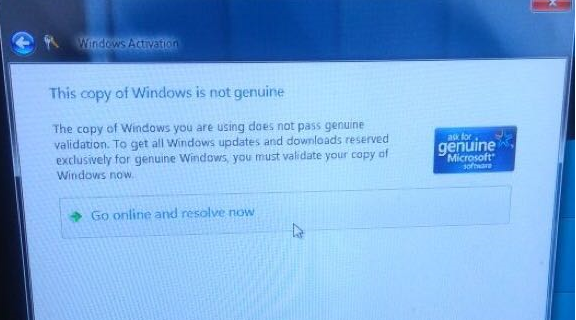
Seeing the message “This copy of Windows is not genuine” on your screen can be frustrating and concerning. It not only interrupts your workflow but may also limit access to certain features, updates, and personalization options. This issue typically appears when the system fails to validate your Windows license.
In this comprehensive guide, you’ll learn what causes this error, how to fix it safely and legally, and how to prevent it from happening again.
What Does the Error Mean?
The “not genuine” message is triggered by Windows Activation Technologies when your operating system cannot verify that your copy of Windows is properly licensed. This could be due to invalid product keys, system changes, or activation failures.
When this happens, you may notice:
- A persistent watermark on your desktop
- Black desktop background
- Limited customization options
- Frequent activation reminders
Common Causes of the Error
Understanding the cause can help you choose the right solution. Here are the most common reasons:
- Invalid or expired product key
- Using pirated or unauthorized Windows copies
- Hardware changes (e.g., motherboard replacement)
- Corrupted system files
- Failed or incomplete updates
Important Note: Use Legal Methods Only
Before proceeding, it’s essential to understand that bypassing Windows activation using unauthorized tools or hacks is illegal and unsafe. These methods can expose your system to malware and security risks.
This guide focuses only on legitimate and safe solutions.
Method 1: Activate Windows with a Valid Product Key
The most straightforward solution is to activate Windows using a genuine product key.
Steps:
- Open Settings
- Go to Update & Security
- Click Activation
- Select Change product key
- Enter a valid key and click Next
If the key is valid, Windows will activate immediately.
Method 2: Use the Activation Troubleshooter
Windows includes a built-in tool to resolve activation issues.
Steps:
- Go to Settings > Update & Security > Activation
- Click Troubleshoot
- Follow the on-screen instructions
This tool can automatically detect and fix common activation problems.
Method 3: Reactivate After Hardware Changes
If you recently upgraded your hardware, Windows may require reactivation.
Steps:
- Go to Activation settings
- Click Troubleshoot
- Select I changed hardware on this device recently
- Sign in with your Microsoft account
- Select your device and click Activate
Linking your license to your Microsoft account makes this process easier.
Method 4: Run System File Checker (SFC)
Corrupted system files can interfere with activation.
Steps:
- Open Command Prompt as Administrator
- Type:
sfc /scannow - Press Enter and wait for the scan to complete
Restart your computer after the scan finishes.
Method 5: Check for Windows Updates
Outdated systems may fail activation checks.
Steps:
- Open Settings
- Go to Update & Security
- Click Check for updates
- Install all available updates
Keeping your system updated ensures compatibility with activation services.
Method 6: Verify License Status via Command Prompt
You can check your activation status using a command.
Steps:
- Open Command Prompt as Administrator
- Type:
slmgr /xpr - Press Enter
A message will appear showing whether your Windows is permanently activated.
Method 7: Contact Microsoft Support
If none of the above methods work, contacting Microsoft support is a reliable option.
- Explain your issue
- Provide your product key
- Follow their instructions for reactivation
They can help resolve complex activation problems.
What NOT to Do
Avoid these risky practices:
- Using cracked activation tools
- Downloading unofficial patches
- Disabling Windows activation services
These methods may temporarily remove the message but can lead to security vulnerabilities and legal issues.
How to Prevent the Error in the Future
To avoid seeing this message again, follow these best practices:
- Always use a genuine Windows license
- Purchase keys from authorized sellers
- Link your license to your Microsoft account
- Keep your system updated
- Avoid major hardware changes without preparation
Benefits of Genuine Windows
Using a legitimate version of Windows provides several advantages:
- Access to regular updates and security patches
- Full customization features
- Better system performance and stability
- Protection against malware and vulnerabilities
Investing in a genuine license ensures peace of mind.
When to Consider Reinstalling Windows
If activation issues persist despite all efforts, reinstalling Windows may help.
- Use official installation media
- Enter your valid product key during setup
- Ensure a clean installation
This can resolve deep system issues affecting activation.
Final Thoughts
The “This copy of Windows is not genuine” error can be disruptive, but it’s usually easy to fix with the right approach. By using legitimate methods such as activating with a valid key, running the troubleshooter, or updating your system, you can restore full functionality quickly.
Avoid shortcuts or illegal tools, as they can cause more harm than good. Instead, focus on safe and reliable solutions that protect your system and data.
With proper maintenance and a genuine license, you can enjoy a smooth and secure Windows experience without interruptions.