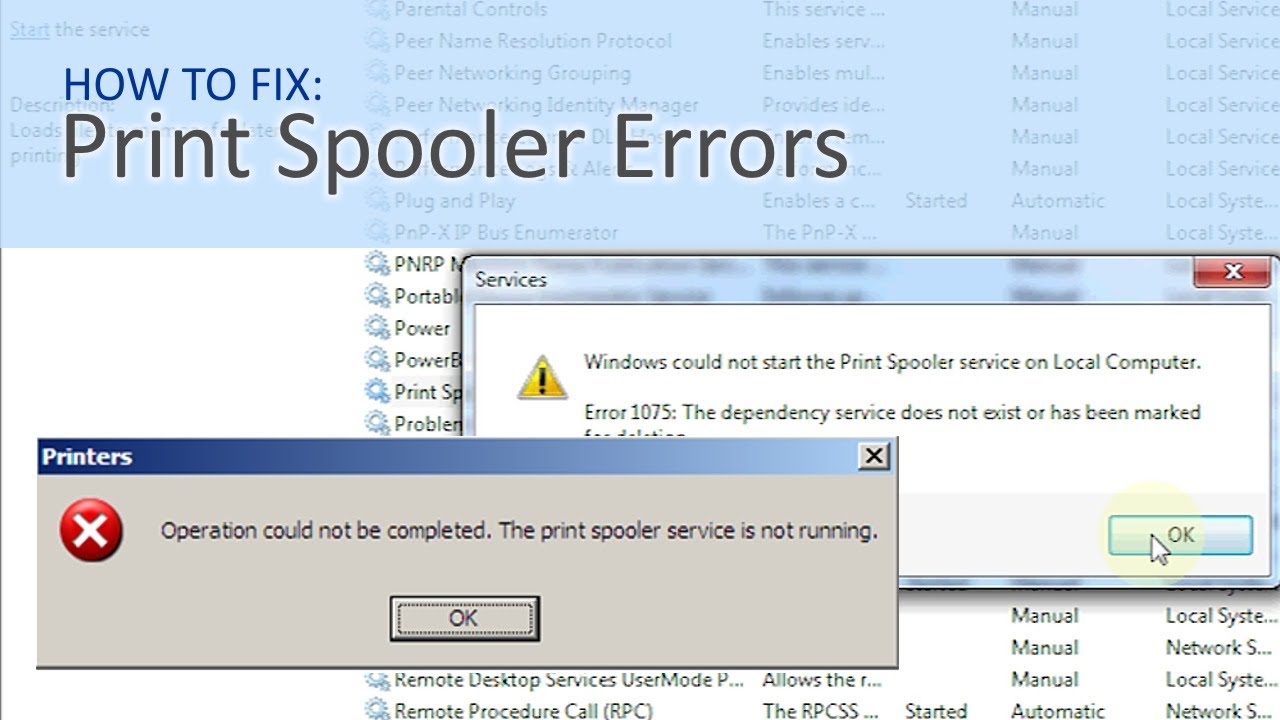
Printing documents is a basic yet essential task for both home and office users. However, encountering the error “The local printer spooler service is not running” can bring everything to a halt. This issue is common in Windows systems and prevents users from sending print jobs to their printers.
If you’re facing this frustrating problem, don’t worry. This detailed guide will walk you through the causes, solutions, and preventive measures to fix the printer spooler service error quickly and effectively.
What Is the Printer Spooler Service?
The printer spooler is a built-in Windows service that manages print jobs sent to the printer. It temporarily stores print data in a queue and ensures that documents are printed in the correct order.
When this service stops running or becomes corrupted, your system cannot communicate with the printer, leading to the error message.
Common Causes of the Error
Understanding the root cause can help you fix the issue more efficiently. Here are some common reasons:
- Corrupted or stuck print jobs
- Disabled or stopped spooler service
- Outdated or faulty printer drivers
- Malware or system file corruption
- Registry errors
Quick Fix: Restart the Print Spooler Service
The simplest solution is to restart the spooler service.
Steps:
- Press Windows + R to open the Run dialog
- Type
services.mscand press Enter - Scroll down to Print Spooler
- Right-click and select Restart
If the service is not running, click Start instead.
Method 1: Set Spooler Service to Automatic
Sometimes the spooler service is not configured to start automatically.
Steps:
- Open Services (
services.msc) - Double-click Print Spooler
- Set Startup type to Automatic
- Click Apply and then Start
This ensures the service runs every time your computer starts.
Method 2: Clear the Print Queue
A stuck print job can cause the spooler to stop working.
Steps:
- Open Services and stop the Print Spooler
- Navigate to:
C:\Windows\System32\spool\PRINTERS - Delete all files in the folder
- Go back and restart the Print Spooler
This clears any problematic print jobs.
Method 3: Update or Reinstall Printer Drivers
Outdated or corrupted drivers are a major cause of spooler errors.
Steps:
- Open Device Manager
- Expand Printers
- Right-click your printer and select Update driver
If updating doesn’t work:
- Uninstall the printer
- Restart your computer
- Reinstall the latest driver from the manufacturer’s website
Method 4: Run System File Checker (SFC)
Corrupted system files can interfere with the spooler service.
Steps:
- Open Command Prompt as Administrator
- Type:
sfc /scannow - Press Enter and wait for the scan to complete
Restart your system after the scan finishes.
Method 5: Check Dependencies
The Print Spooler depends on other services to function properly.
Steps:
- Open Services
- Double-click Print Spooler
- Go to the Dependencies tab
- Ensure all listed services are running
Start any stopped services and restart the spooler.
Method 6: Scan for Malware
Malware infections can disrupt system services, including the spooler.
- Run a full system scan using trusted antivirus software
- Remove any detected threats
- Restart your computer
Keeping your system clean is essential for stable performance.
Method 7: Modify Registry Settings
If the issue persists, registry errors might be the cause.
Steps:
- Press Windows + R, type
regedit, and press Enter - Navigate to:
HKEY_LOCAL_MACHINE\SYSTEM\CurrentControlSet\Services\Spooler - Ensure the Start value is set to
2(Automatic)
Always back up your registry before making changes.
Method 8: Use Windows Troubleshooter
Windows includes a built-in troubleshooter for printers.
Steps:
- Go to Settings > Update & Security > Troubleshoot
- Select Printer
- Click Run the troubleshooter
Follow the on-screen instructions to detect and fix issues automatically.
Method 9: Restart Print Spooler via Command Prompt
You can also restart the spooler using command-line tools.
Steps:
- Open Command Prompt as Administrator
- Type the following commands:
net stop spooler
net start spooler
This quickly resets the service.
Method 10: Perform a System Restore
If the problem started recently, restoring your system can help.
Steps:
- Open System Restore
- Select a restore point before the issue occurred
- Follow the instructions to complete the process
This can undo recent changes that caused the error.
Preventing Future Spooler Issues
To avoid encountering this error again, follow these best practices:
- Keep your printer drivers updated
- Regularly clear old print jobs
- Install Windows updates
- Use reliable antivirus software
- Avoid installing untrusted software
Maintaining your system ensures smoother printing operations.
When to Seek Professional Help
If none of the solutions work, the issue may be deeper, such as hardware failure or advanced system corruption. In such cases, consulting a professional technician is recommended.
Final Thoughts
The “local printer spooler service is not running” error can be disruptive, but it’s usually easy to fix with the right steps. From restarting the service to clearing the print queue and updating drivers, most solutions are simple and effective.
By following this guide, you can quickly restore your printing functionality and prevent future issues. A well-maintained system not only improves performance but also saves time and frustration.
Take control of your printing system today, and ensure your workflow remains smooth and uninterrupted.