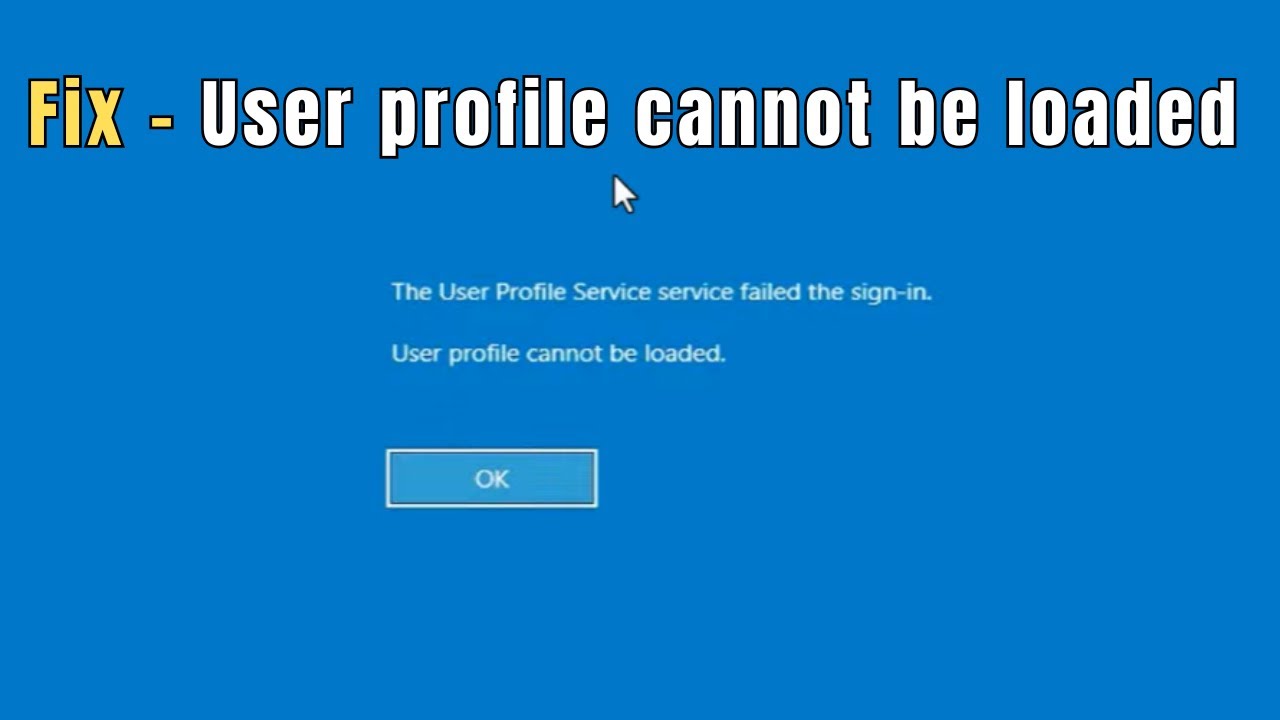
Encountering the “User Profile Cannot Be Loaded” error can be frustrating, especially when you need quick access to your computer. This issue commonly appears on Windows systems and prevents users from logging into their accounts. Fortunately, the problem is usually fixable with the right approach.
In this comprehensive guide, you’ll learn what causes this error, how to fix it step by step, and how to prevent it from happening again.
What Causes the “User Profile Cannot Be Loaded” Error?
This error typically occurs when Windows is unable to read or load your user profile. Several factors can trigger this issue, including:
- Corrupted user profile files
- Improper system shutdowns
- Failed Windows updates
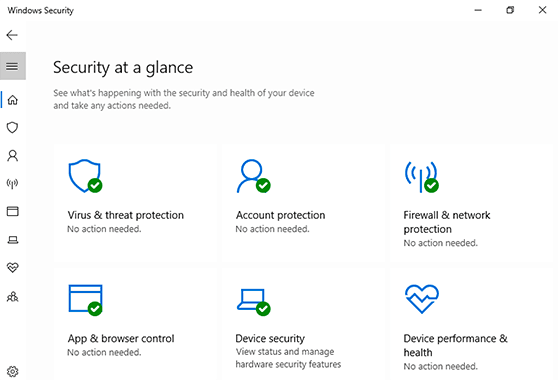
- Antivirus software interference
- Registry errors
When the system fails to load your profile, it either logs you out immediately or shows the error message during login.
Quick Fix: Restart Your Computer
Before diving into advanced solutions, try restarting your computer. Sometimes, temporary glitches or incomplete processes can cause the error. A simple reboot may resolve the issue instantly.
If the error persists, move on to the solutions below.
Method 1: Boot into Safe Mode
Safe Mode allows you to troubleshoot Windows with minimal drivers and services.
Steps:
- Restart your computer
- Press F8 or hold Shift + Restart
- Select Troubleshoot > Advanced Options > Startup Settings
- Choose Safe Mode
Once inside Safe Mode, try logging into your account again. If successful, the issue may be caused by a recently installed application or driver.
Method 2: Create a New User Profile
If your profile is corrupted, creating a new one is often the easiest fix.
Steps:
- Boot into Safe Mode
- Open Control Panel
- Navigate to User Accounts
- Click Manage another account
- Select Add a new user
Create a new account and restart your computer. Log in using the new profile. If it works, you can transfer your files from the old profile.
Method 3: Fix the Registry
A corrupted registry entry is a common cause of this error. Editing the registry can resolve the issue, but proceed carefully.
Steps:
- Press Windows + R, type
regedit, and hit Enter - Navigate to:
HKEY_LOCAL_MACHINE\SOFTWARE\Microsoft\Windows NT\CurrentVersion\ProfileList - Look for duplicate profile entries ending in
.bak - Rename the
.bakentry by removing the extension - Adjust the RefCount and State values to
0
Restart your computer and try logging in again.
Always back up your registry before making changes to avoid system issues.
Method 4: Run System File Checker (SFC)
Corrupted system files can prevent your profile from loading. Running the System File Checker can repair these files.
Steps:
- Open Command Prompt as Administrator
- Type:
sfc /scannow - Press Enter and wait for the scan to complete
Once finished, restart your computer and check if the issue is resolved.
Method 5: Check Disk for Errors
Disk errors can also lead to profile loading issues.
Steps:
- Open Command Prompt as Administrator
- Type:
chkdsk /f /r - Press Enter
- Restart your system to begin the scan
This process may take some time but can fix underlying disk problems.
Method 6: Disable Antivirus Temporarily
Some antivirus programs may interfere with user profile loading.
- Disable your antivirus software temporarily
- Restart your computer
- Attempt to log in again
If this resolves the issue, consider updating or replacing your antivirus software.
Method 7: Perform a System Restore
If the error started recently, restoring your system to a previous state can help.
Steps:
- Boot into Safe Mode or Advanced Startup
- Select System Restore
- Choose a restore point before the issue occurred
- Follow the prompts to complete the process
This will revert system settings without affecting personal files.
Method 8: Reset Windows
If none of the above solutions work, resetting Windows may be necessary.
Steps:
- Go to Settings > Update & Security > Recovery
- Click Reset this PC
- Choose Keep my files or Remove everything
This will reinstall Windows and eliminate persistent issues.
How to Prevent This Error in the Future
To avoid encountering this problem again, follow these best practices:
- Always shut down your computer properly
- Keep your system updated
- Use reliable antivirus software
- Avoid interrupting updates or installations
- Regularly back up your data
Maintaining your system health can significantly reduce the risk of profile corruption.
Final Thoughts
The “User Profile Cannot Be Loaded” error may seem serious, but in most cases, it can be fixed with the right troubleshooting steps. Whether it’s a simple restart, creating a new profile, or repairing the registry, there are multiple ways to regain access to your account.
By following this guide, you not only resolve the issue but also strengthen your system against future problems. Take preventive measures seriously, and you’ll enjoy a smoother, more reliable computing experience.
If the problem persists despite trying all solutions, it may be worth consulting a professional technician to diagnose deeper system issues.
With patience and the right approach, you can fix this error and get back to work without unnecessary stress.