Few things are more frustrating than launching your favorite game—one that used to run perfectly smooth—only to be met with stutters, FPS drops, or inconsistent frame times. If your gameplay suddenly feels choppy despite no changes to your hardware, the culprit is usually something external.
In most cases, these issues are triggered by a recent NVIDIA driver update, a Windows update, or a game patch that forces shader recompilation and disrupts existing caches. Understanding how these components interact is key to diagnosing and fixing performance problems.
This in-depth guide explains why game stutter happens after updates and provides comprehensive solutions to restore smooth performance.
Understanding Game Stutter and Frame Time Issues
Before diving into fixes, it’s important to understand what’s actually happening.
What Is Stutter?
Stutter occurs when frames are not delivered consistently. Even if your FPS is high, uneven frame delivery creates a choppy experience.
What Are Frame Times?
Frame time refers to how long it takes to render each frame. Stable frame times (e.g., 16.6ms for 60 FPS) result in smooth gameplay, while spikes cause visible stutters.
Common Symptoms
- Sudden FPS drops
- Micro-stuttering
- Input lag
- Frame pacing issues
- Hitching during gameplay
Why Updates Cause Performance Problems
1. NVIDIA Driver Updates
New GPU drivers often include:
- Performance optimizations
- Bug fixes
- Game-specific profiles
However, they can also introduce:
- New bugs
- Broken optimizations
- Shader cache resets
2. Windows Updates
Windows updates may:
- Change system scheduling
- Update drivers automatically
- Modify power management
These changes can interfere with GPU performance.
3. Game Updates
Game patches can:
- Recompile shaders
- Reset settings
- Introduce new rendering techniques
This often causes temporary or persistent stutter.
The Role of Shader Compilation
One of the biggest causes of stutter is shader compilation.
What Are Shaders?
Shaders are small programs that control how graphics are rendered.
Why They Cause Stutter
When shaders are not precompiled:
- The game compiles them in real time
- This causes frame drops and stutter
Shader Cache Issues
- Old caches may become incompatible after updates
- Corrupted caches lead to repeated stutter
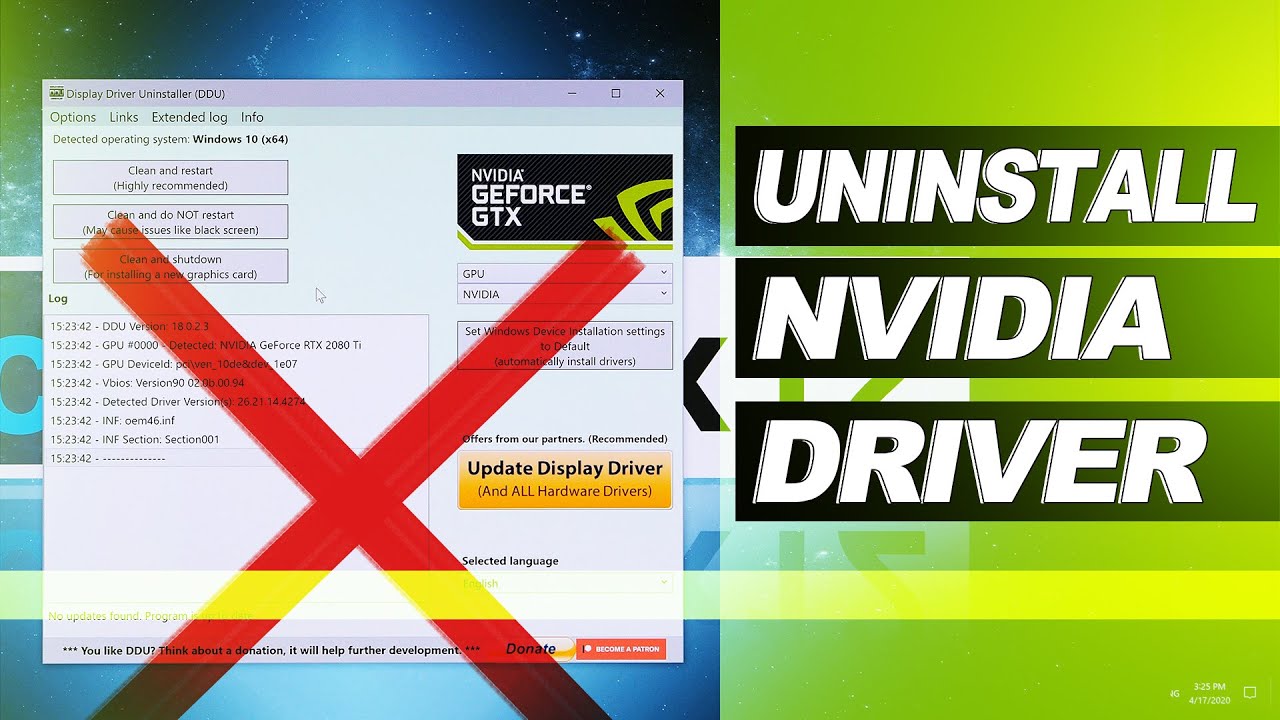
Fix 1: Perform a Clean NVIDIA Driver Installation
A clean install removes leftover files and conflicts.
Steps:
- Download the latest NVIDIA driver
- Use Display Driver Uninstaller (DDU)
- Boot into Safe Mode
- Remove existing drivers
- Install fresh driver
Why This Works
- Eliminates corrupted files
- Resets driver settings
- Ensures compatibility
Fix 2: Roll Back NVIDIA Drivers
Sometimes newer drivers are less stable.
Steps:
- Open Device Manager
- Go to Display Adapters
- Select your GPU
- Choose Roll Back Driver
Tip:
Use a previously stable driver version.
Fix 3: Clear Shader Cache
Clearing shader cache forces a clean rebuild.
Steps:
- Open Disk Cleanup
- Select system drive
- Check DirectX Shader Cache
- Delete files
Also clear NVIDIA shader cache:
- Navigate to NVIDIA cache folder
- Delete contents
Fix 4: Let Shaders Recompile
After clearing cache:
- Launch the game
- Wait for shader compilation (if available)
- Play for a few minutes to stabilize
Initial stutter is normal during this process.
Fix 5: Disable Windows Game Bar and Background Features
Background processes can cause interruptions.
Steps:
- Open Settings
- Go to Gaming
- Disable Xbox Game Bar
- Turn off background recording
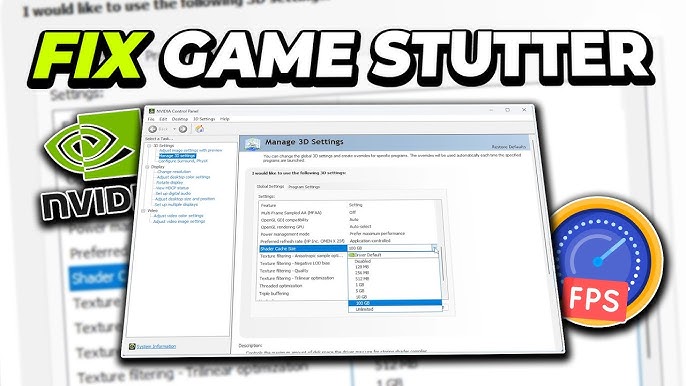
Fix 6: Adjust NVIDIA Control Panel Settings
Optimize GPU settings.
Recommended Changes:
- Power Management Mode → Prefer Maximum Performance
- Low Latency Mode → On/Ultra
- Shader Cache Size → Unlimited
Fix 7: Check Power Settings
Windows power plans affect performance.
Steps:
- Open Control Panel
- Go to Power Options
- Select High Performance
Fix 8: Disable Fullscreen Optimizations
This feature can cause stutter in some games.
Steps:
- Right-click game executable
- Go to Properties
- Open Compatibility tab
- Check Disable fullscreen optimizations
Fix 9: Update or Reinstall Game
Game files may be corrupted.
Steps:
- Verify game files (Steam/Epic)
- Reinstall if necessary
Fix 10: Limit Background Applications
Close unnecessary programs:
- Browsers
- Overlay apps
- Monitoring tools
Fix 11: Check Storage Performance
Slow drives can cause stutter.
Tips:
- Install games on SSD
- Ensure sufficient free space
- Avoid fragmented drives
Fix 12: Disable Overlays
Overlays can interfere with rendering.
Disable:
- Discord overlay
- NVIDIA overlay
- Steam overlay
Fix 13: Adjust In-Game Settings
Lower demanding settings:
- Shadows
- Ray tracing
- Anti-aliasing
Fix 14: Monitor Temperatures
Thermal throttling causes performance drops.
Check:
- GPU temperature
- CPU temperature
Clean dust and improve cooling if needed.
Fix 15: Update Chipset Drivers
Motherboard drivers affect system performance.
Steps:
- Download from manufacturer website
- Install latest chipset drivers
Fix 16: Check RAM Usage
Insufficient RAM leads to stutter.
Tips:
- Close background apps
- Upgrade RAM if necessary
Fix 17: Use Frame Rate Limiter
Limiting FPS can stabilize frame times.
Example:
- Limit FPS to monitor refresh rate
- Use in-game limiter or NVIDIA settings
Fix 18: Disable Hardware-Accelerated GPU Scheduling
This feature can cause issues on some systems.
Steps:
- Open Settings
- Go to System > Display
- Graphics settings
- Turn off GPU scheduling
Fix 19: Reinstall Windows Updates (If Needed)
If issue started after update:
- Uninstall recent update
- Pause updates temporarily
Fix 20: Perform System Cleanup
Remove junk files and optimize system.
Tools:
- Disk Cleanup
- Storage Sense
Advanced Troubleshooting
If basic fixes don’t work:
- Use performance monitoring tools
- Check for driver conflicts
- Analyze frame time graphs
Preventing Future Stutter Issues
To maintain smooth performance:
- Avoid updating drivers immediately
- Wait for stable releases
- Keep backups of working configurations
- Regularly clean shader cache
Why Stability Matters More Than Latest Updates
New updates are not always better.
Consider:
- Stability over performance gains
- Proven driver versions
- Community feedback
Real-World Example
A game running smoothly at 100 FPS may drop to inconsistent frame times after:
- Driver update resets shader cache
- Game patch introduces new shaders
- Windows update changes scheduling
Fixing these restores smoothness.
Quick Troubleshooting Checklist
- Clean install drivers
- Clear shader cache
- Disable overlays
- Update system components
- Optimize settings
Conclusion
Game stutter after NVIDIA driver updates, Windows updates, or game patches is a common issue—but it’s usually fixable. The root cause often lies in shader cache problems, driver conflicts, or system-level changes.
By following the solutions in this guide—from clean driver installations to shader cache management—you can restore smooth gameplay and eliminate frustrating stutters.
Remember, performance tuning is about consistency. With the right approach, you can enjoy stable frame rates and a seamless gaming experience once again.