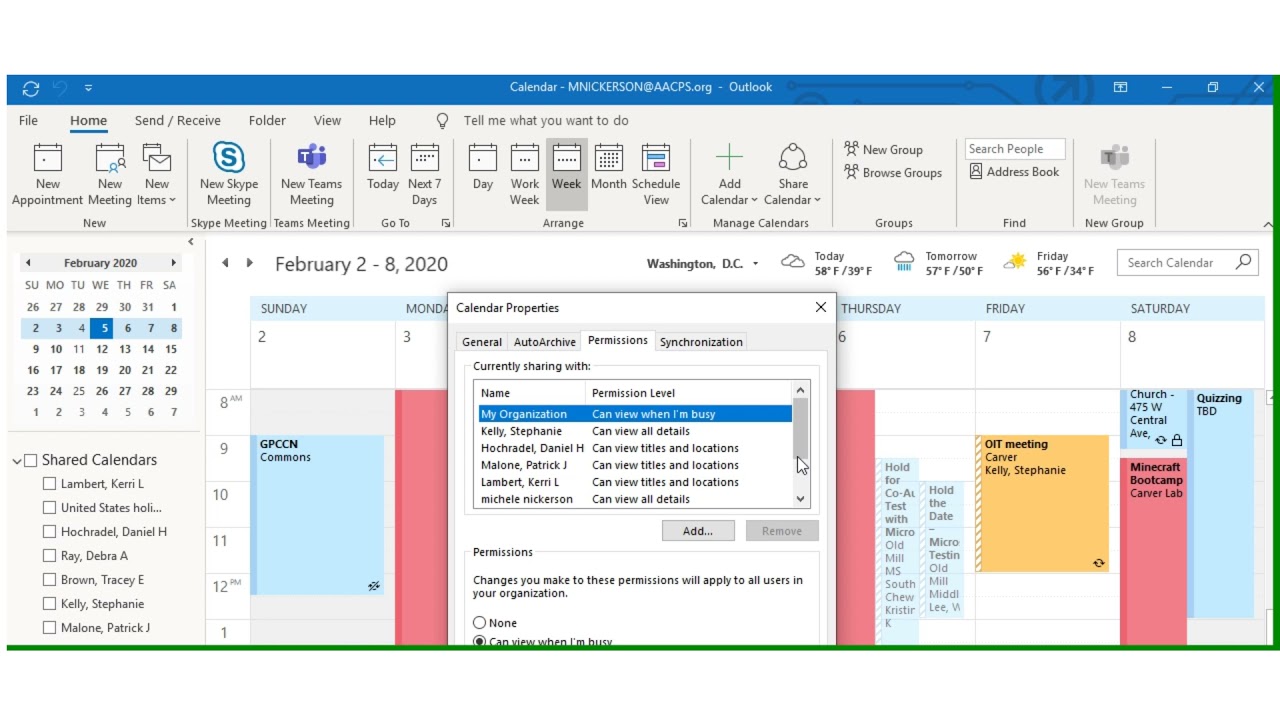
The Calendar app on Windows 11 is a powerful tool that helps users stay organized, manage schedules, and sync events across devices. However, like any software, it can sometimes stop working properly. Whether your calendar isn’t syncing, fails to open, or doesn’t display events correctly, these issues can disrupt your daily routine.
If you’ve been asking, “Why is my calendar not working on Windows 11?”, this detailed guide will walk you through the possible causes and provide step-by-step solutions to fix the problem effectively.
Common Signs of Calendar Issues
Before diving into fixes, identify the symptoms you’re experiencing:
- Calendar app not opening
- Events not syncing across devices
- App crashing or freezing
- Missing or outdated events
- Unable to add or edit entries
Understanding the issue helps narrow down the right solution.
Why Your Calendar Is Not Working on Windows 11
Several factors can cause the Calendar app to malfunction. Below are the most common reasons.
1. Sync Problems
If your calendar isn’t updating, syncing may be disabled or failing due to account issues.
2. Incorrect Account Settings
Wrong login credentials or misconfigured accounts can prevent proper functionality.
3. Outdated App or System
Older versions of Windows or the Calendar app may contain bugs.
4. Corrupted App Data
Temporary files or corrupted cache can cause the app to malfunction.
5. Internet Connectivity Issues
The Calendar app relies on internet access for syncing data.
6. Disabled Background Apps
If background app permissions are disabled, syncing may stop.
7. Windows System Errors
System-level issues can affect built-in apps like Calendar.
Fix 1: Check Internet Connection
Start with the basics.
Steps:
- Ensure your device is connected to the internet
- Restart your router
- Switch to another network if possible
A stable connection is essential for syncing events.
Fix 2: Sync Your Calendar Manually
Sometimes automatic syncing fails.
Steps:
- Open Calendar app
- Click Settings (gear icon)
- Select Manage Accounts
- Choose your account
- Click Change mailbox sync settings
- Click Sync now
This forces the app to update.
Fix 3: Verify Account Settings
Ensure your account is configured correctly.
Steps:
- Open Calendar
- Go to Settings > Manage Accounts
- Check your account details
- Remove and re-add the account if needed
Incorrect credentials can block syncing.
Fix 4: Update Windows 11
Keeping your system updated fixes bugs and improves performance.
Steps:
- Open Settings
- Go to Windows Update
- Click Check for updates
- Install available updates
Restart your PC afterward.
Fix 5: Update the Calendar App
App updates often include bug fixes.
Steps:
- Open Microsoft Store
- Click Library
- Select Get updates
- Update the Calendar app
Fix 6: Reset the Calendar App
Resetting clears corrupted data.
Steps:
- Open Settings
- Go to Apps > Installed apps
- Find Mail and Calendar
- Click Advanced options
- Select Reset
This restores the app to default settings.
Fix 7: Clear App Cache
Cache issues can cause errors.
Steps:
- Reset the app (as above)
- Restart your computer
This effectively clears cached data.
Fix 8: Enable Background Apps
The Calendar app needs background access.
Steps:
- Open Settings
- Go to Apps > Installed apps
- Select Calendar
- Ensure background permissions are enabled
Fix 9: Check Date and Time Settings
Incorrect system time can disrupt syncing.
Steps:
- Open Settings
- Go to Time & Language > Date & Time
- Enable Set time automatically
- Enable Set time zone automatically
Fix 10: Run Windows Troubleshooter
Windows includes built-in troubleshooting tools.
Steps:
- Open Settings
- Go to System > Troubleshoot
- Click Other troubleshooters
- Run relevant troubleshooters
Fix 11: Reinstall the Calendar App
If resetting doesn’t work, reinstall the app.
Steps:
- Open PowerShell as Administrator
- Run command to uninstall Mail and Calendar
- Reinstall from Microsoft Store
This ensures a fresh installation.
Fix 12: Disable Antivirus Temporarily
Security software may interfere with apps.
Steps:
- Disable antivirus temporarily
- Test Calendar functionality
- Re-enable antivirus afterward
Fix 13: Check Microsoft Account Sync Settings
Ensure syncing is enabled for your account.
Steps:
- Open Settings
- Go to Accounts > Windows backup
- Ensure sync settings are turned on
Fix 14: Create a New User Profile
A corrupted user profile can cause app issues.
Steps:
- Open Settings
- Go to Accounts > Other users
- Add a new user
- Log in and test Calendar
Fix 15: Use Outlook or Web Calendar
If the app continues to fail:
- Use Outlook app
- Access calendar via web browser
This serves as a temporary workaround.
Best Practices to Avoid Calendar Issues
To keep your calendar working smoothly:
- Keep Windows updated
- Regularly sync your account
- Avoid using multiple conflicting apps
- Maintain stable internet connection
- Periodically reset apps if needed
Why This Problem Matters
Calendar issues can impact:
- Work schedules
- Meeting planning
- Personal organization
Fixing these problems ensures productivity and reliability.
When to Seek Help
If none of the solutions work:
- Contact Microsoft Support
- Check online forums
- Consider system repair
Persistent issues may require deeper fixes.
Quick Troubleshooting Checklist
For fast resolution:
- Check internet connection
- Sync manually
- Update Windows and apps
- Reset Calendar app
- Verify account settings
Conclusion
If your calendar is not working on Windows 11, the issue is usually caused by sync problems, outdated software, or corrupted app data. Fortunately, most of these problems can be resolved with simple troubleshooting steps.
By following the solutions outlined in this guide—from checking your internet connection to resetting the app—you can restore full functionality and keep your schedule running smoothly.
Take a few minutes to apply these fixes, and your Windows 11 Calendar should be back to working perfectly in no time.