Have you ever pulled your iPhone out of your pocket only to realize the flashlight is already on? If so, you’re not alone. Many users report that their iPhone flashlight seems to turn on randomly without any clear action. While this can feel like a glitch or bug, the cause is often tied to specific settings and features built into iOS.
In this comprehensive guide, we’ll explore why your iPhone flashlight may be turning on by itself and walk you through practical, step-by-step solutions to fix the issue for good.
Why Your iPhone Flashlight Turns On by Itself
Before jumping into solutions, it’s important to understand the root causes. In most cases, the flashlight isn’t actually “randomly” turning on—it’s being triggered unintentionally by certain features.
Common Causes
- Accidental touches on the Lock Screen
- Raise to Wake feature activating the screen
- Tap gestures triggering actions
- Control Center sensitivity
- iOS bugs or glitches
- Case or screen sensitivity issues
Let’s break down each one and see how it contributes to the problem.
The Main Culprit: Lock Screen Flashlight Button
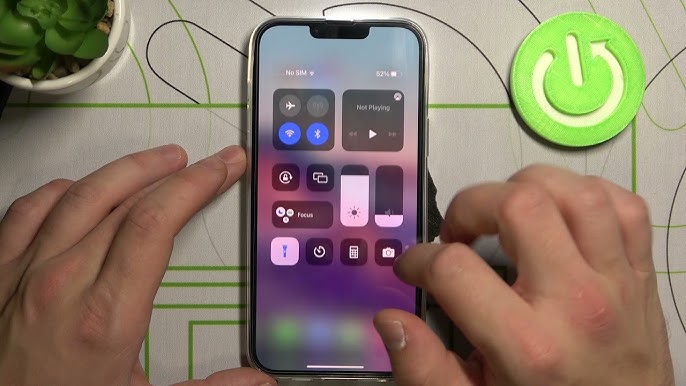
One of the biggest reasons behind this issue is the flashlight shortcut on the Lock Screen. Apple places a flashlight icon in the bottom-left corner for quick access.
While convenient, it can easily be triggered by:
- Accidental taps in your pocket
- Pressure from tight clothing
- Unintentional hand contact
Because it doesn’t require unlocking the phone, even slight touches can activate it.
Fix 1: Be Mindful of Lock Screen Interactions
Although you can’t fully remove the flashlight button on most iPhones, you can reduce accidental activation:
- Avoid placing your finger near the bottom-left corner
- Use a case with raised edges
- Lock your phone before putting it in your pocket
Small habit changes can make a big difference.
Fix 2: Disable Raise to Wake
Raise to Wake turns your screen on when you lift your iPhone. This increases the chances of accidental touches.
Steps:
- Open Settings
- Tap Display & Brightness
- Toggle off Raise to Wake
With this disabled, your screen won’t turn on as easily, reducing accidental flashlight triggers.
Fix 3: Turn Off Tap to Wake
Tap to Wake allows you to wake the screen by tapping it. While useful, it can also cause unintended activations.
Steps:
- Open Settings
- Go to Accessibility
- Tap Touch
- Turn off Tap to Wake
This further limits accidental screen activation.
Fix 4: Check Back Tap Settings
The Back Tap feature lets you trigger actions by tapping the back of your phone. If configured incorrectly, it might activate the flashlight.
Steps:
- Open Settings
- Go to Accessibility > Touch > Back Tap
- Check Double Tap and Triple Tap
- Ensure flashlight is not assigned
If it is, change it to something else or disable it.
Fix 5: Adjust Control Center Access
Control Center can be accessed from the Lock Screen, making it easy to turn on the flashlight unintentionally.
Steps:
- Open Settings
- Tap Face ID & Passcode
- Enter your passcode
- Toggle off Control Center under “Allow Access When Locked”
This prevents accidental flashlight activation through Control Center.
Fix 6: Restart Your iPhone
Sometimes the issue may be caused by a temporary glitch.
Steps:
- Press and hold the power button
- Slide to power off
- Turn your device back on
A simple restart can resolve minor bugs.
Fix 7: Update iOS
Software bugs can sometimes cause unexpected behavior.
Steps:
- Open Settings
- Tap General
- Select Software Update
- Install any available updates
Updates often include bug fixes and performance improvements.
Fix 8: Check Your Phone Case
Your phone case might be contributing to the problem.
Possible Issues:
- Tight-fitting cases pressing the screen
- Poorly designed cases touching the Lock Screen area
- Dirt or debris causing pressure points
Solution:
- Remove the case temporarily
- Test if the issue persists
- Switch to a better-fitting case if needed
Fix 9: Clean Your Screen
A dirty or oily screen can increase sensitivity and lead to accidental touches.
Steps:
- Use a microfiber cloth
- Gently clean the screen
- Avoid harsh chemicals
A clean screen improves touch accuracy.
Fix 10: Reset All Settings
If the issue continues, resetting settings may help.
Steps:
- Open Settings
- Go to General
- Tap Transfer or Reset iPhone
- Select Reset > Reset All Settings
This won’t delete your data but will reset system settings.
Fix 11: Disable Accessibility Shortcuts
Some accessibility features may interfere with normal behavior.
Steps:
- Open Settings
- Go to Accessibility
- Review enabled features
- Disable anything unnecessary
This ensures no hidden triggers are activating the flashlight.
Fix 12: Check for Hardware Issues
In rare cases, hardware problems may be involved.
Signs:
- Flashlight turns on even when phone is untouched
- Screen responds without input
- Other random actions occur
If this happens, consider contacting Apple Support.
Preventing Future Flashlight Issues
To avoid the problem in the future:
- Keep your phone locked when not in use
- Use a protective case
- Disable unnecessary features
- Keep your device updated
These habits reduce the chances of accidental activation.
Why This Issue Is So Common
Apple prioritizes quick access to essential features like the flashlight. While convenient, this design can lead to unintended usage.
Features like:
- Lock Screen shortcuts
- Gesture controls
- Touch sensitivity
All contribute to ease of use—but also increase the likelihood of accidental triggers.
When You Should Worry
Most cases are harmless and easily fixable. However, you should investigate further if:
- The flashlight activates repeatedly without interaction
- Other features behave unpredictably
- The issue persists after all fixes
This could indicate a deeper software or hardware issue.
Quick Troubleshooting Checklist
If you want a fast solution, follow this checklist:
- Disable Raise to Wake
- Turn off Tap to Wake
- Check Back Tap settings
- Restrict Control Center access
- Restart your device
- Update iOS
These steps solve the majority of cases.
Conclusion
If your iPhone flashlight seems to be turning on by itself, the cause is usually linked to built-in convenience features rather than a serious problem. From Lock Screen shortcuts to gesture settings, multiple factors can trigger accidental activation.
By adjusting a few settings—such as disabling Raise to Wake, reviewing Back Tap actions, and limiting Lock Screen access—you can regain full control over your device and prevent the flashlight from turning on unexpectedly.
With the right tweaks and a bit of awareness, you can enjoy your iPhone’s features without the annoyance of random flashlight activations.