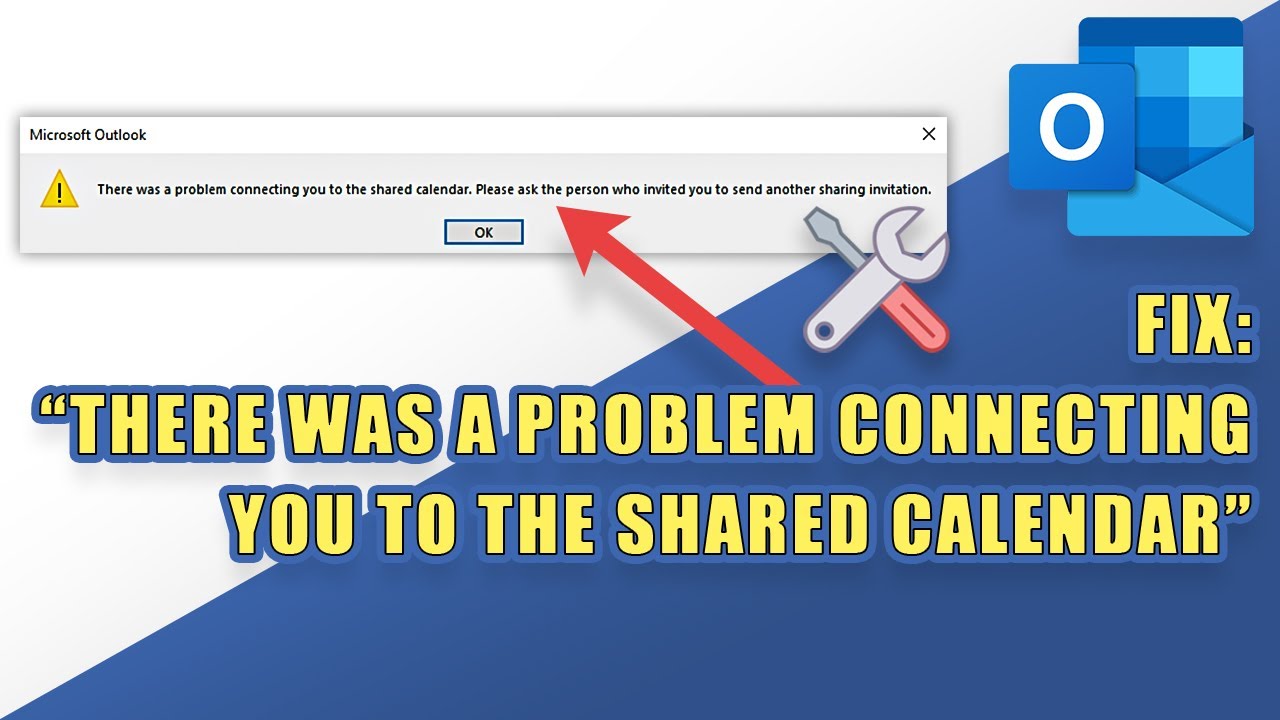
Sharing calendars in Microsoft Outlook is an essential feature for teams, businesses, and individuals who rely on coordinated scheduling. However, encountering the error message—“This calendar can’t be shared with one or more of the people you added”—can quickly disrupt your workflow.
This issue is more common than it seems and can be caused by a variety of factors, including permission misconfigurations, incorrect policies, or account-related limitations. The good news is that most of these problems can be resolved with the right troubleshooting steps.
In this comprehensive guide, we’ll explore the causes of this Outlook calendar sharing error and provide detailed solutions to fix it on Windows 11.
Understanding the Error
When you attempt to share your Outlook calendar and receive this error, it typically means Outlook cannot grant access to one or more recipients. The issue may occur in:
- Outlook desktop app
- Outlook on the web
- Microsoft 365 environments
This error prevents recipients from viewing or editing your calendar, making collaboration difficult.
Common Causes of the Problem
Before applying fixes, it’s important to understand what might be causing the issue.
1. Incorrect Permissions
Calendar sharing requires proper permission levels. If permissions are misconfigured, sharing may fail.
2. External Sharing Restrictions
Organizations often restrict sharing calendars outside their domain.
3. Invalid Email Addresses
If one or more recipient email addresses are incorrect or inactive, the sharing process will fail.
4. Exchange Server Policies
Administrative policies may block calendar sharing entirely or limit it to certain users.
5. Cached Data Issues
Outlook cache corruption can interfere with sharing features.
6. Outdated Outlook Version
Older versions of Outlook may not support newer sharing features properly.
Solution 1: Verify Recipient Email Addresses
Start with the simplest fix.
Steps:
- Double-check all recipient email addresses
- Remove invalid or mistyped addresses
- Try adding recipients one by one
This helps identify if a specific contact is causing the issue.
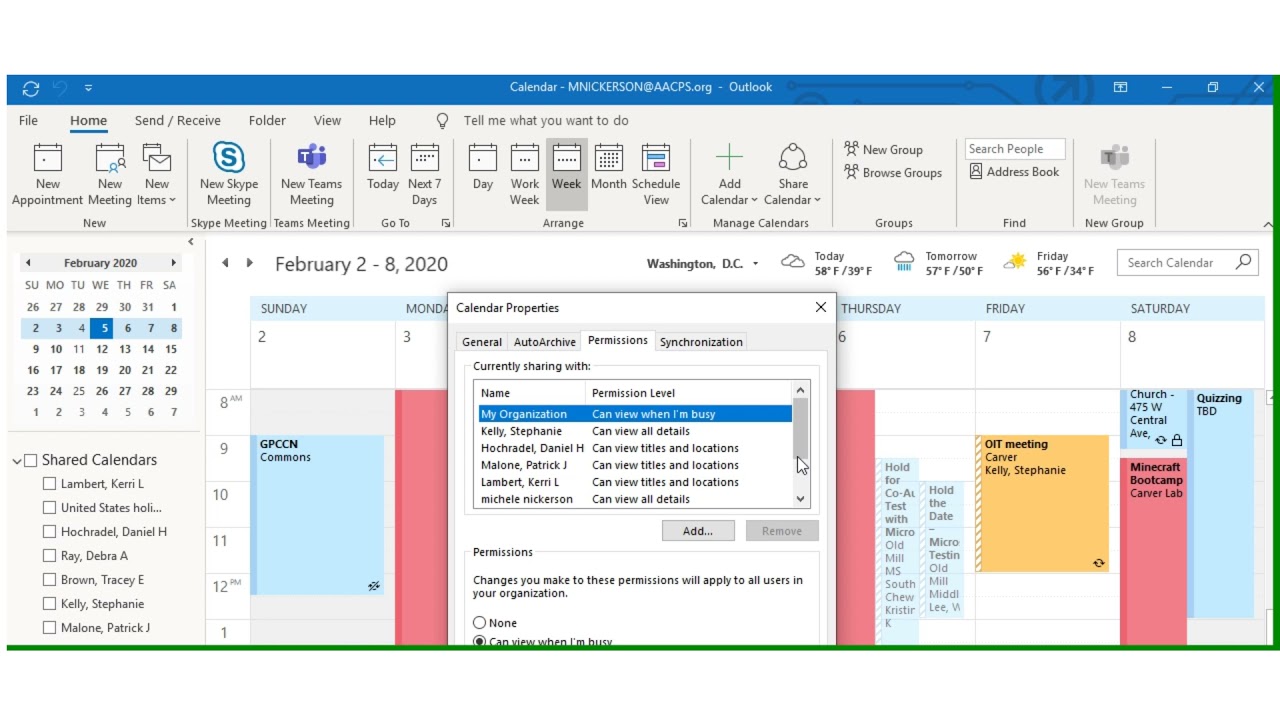
Solution 2: Check Calendar Permissions
Ensure your calendar has the correct sharing settings.
Steps:
- Open Outlook
- Go to Calendar
- Right-click your calendar
- Select Properties or Sharing Permissions
- Verify permission levels
Make sure recipients are assigned appropriate access, such as:
- Can view
- Can edit
Solution 3: Remove and Re-add Sharing
Sometimes resetting sharing resolves the issue.
Steps:
- Remove all shared users
- Save changes
- Restart Outlook
- Add users again
This clears potential configuration errors.
Solution 4: Enable External Sharing (For Organizations)
If you’re using a work or school account, external sharing may be disabled.
Admin Steps:
- Access Microsoft 365 Admin Center
- Navigate to Settings > Org Settings > Calendar
- Enable external sharing
If you’re not an admin, contact your IT department.
Solution 5: Check Exchange Online Policies
Exchange policies can restrict calendar sharing.
Steps:
- Open Exchange Admin Center
- Go to Organization > Sharing
- Review sharing policies
- Ensure your policy allows calendar sharing
Incorrect policies are a common cause in corporate environments.
Solution 6: Clear Outlook Cache
Corrupted cache files can interfere with Outlook features.
Steps:
- Close Outlook
- Press Windows + R
- Type:
%localappdata%\Microsoft\Outlook - Delete cache files (do not delete PST/OST files)
- Restart Outlook
This refreshes Outlook data.
Solution 7: Use Outlook on the Web
Try sharing your calendar via the web version.
Steps:
- Open browser
- Go to Outlook Web
- Log in to your account
- Share calendar
If it works here, the issue may be with the desktop app.
Solution 8: Update Outlook
Ensure you’re using the latest version.
Steps:
- Open Outlook
- Go to File > Office Account
- Click Update Options > Update Now
Updates often fix bugs related to sharing features.
Solution 9: Check Default Sharing Policy
Your account may be assigned a restrictive policy.
Admin Fix:
- Assign a more permissive sharing policy
- Ensure calendar sharing is enabled
This is especially relevant in enterprise environments.
Solution 10: Disable Add-ins
Some Outlook add-ins may interfere with functionality.
Steps:
- Go to File > Options > Add-ins
- Disable unnecessary add-ins
- Restart Outlook
Test sharing again after disabling.
Solution 11: Repair Outlook Installation
If Outlook is corrupted, repairing it can help.
Steps:
- Open Control Panel
- Go to Programs and Features
- Select Microsoft Office
- Click Change
- Choose Quick Repair or Online Repair
This fixes underlying software issues.
Solution 12: Check Internet Connectivity
A stable connection is required for sharing calendars.
Tips:
- Ensure strong internet connection
- Disable VPN temporarily
- Try a different network
Connectivity issues can sometimes block sharing requests.
Solution 13: Verify Account Type
Some account types have limitations.
Supported Accounts:
- Microsoft 365
- Exchange
- Outlook.com
Unsupported or limited accounts may not allow full sharing features.
Solution 14: Test with Another User
Try sharing your calendar with a different user.
- If it works → issue is with specific recipient
- If it fails → issue is with your account or settings
This helps isolate the problem.
Solution 15: Check Windows 11 Settings
Although rare, system settings may affect Outlook.
Steps:
- Ensure Windows is updated
- Check date and time settings
- Verify system permissions
Keeping your system updated ensures compatibility.
Troubleshooting Summary
Here’s a quick checklist:
- Verify email addresses
- Check permissions
- Enable external sharing
- Clear cache
- Update Outlook
- Review policies
Following these steps systematically will resolve most issues.
Best Practices for Calendar Sharing
To avoid future problems:
- Use correct permission levels
- Keep Outlook updated
- Regularly review sharing settings
- Avoid sharing with invalid contacts
- Coordinate with IT for policy settings
These practices ensure smooth collaboration.
Why This Issue Matters
Calendar sharing is critical for:
- Team collaboration
- Meeting scheduling
- Project coordination
When it fails, it can disrupt productivity and communication.
When to Contact IT Support
If none of the solutions work, contact your IT team if:
- You’re using a corporate account
- Policies are managed centrally
- You lack admin access
They can check server-side configurations.
Conclusion
The error “This calendar can’t be shared with one or more of the people you added” in Outlook can be frustrating, but it’s usually caused by manageable issues like incorrect permissions, policy restrictions, or outdated software.
By carefully following the troubleshooting steps outlined in this guide—from verifying email addresses to adjusting Exchange policies—you can identify and resolve the problem effectively.
Whether you’re an individual user or part of an organization, understanding how calendar sharing works will help you maintain smooth scheduling and collaboration on Windows 11.
Take control of your Outlook experience today by applying these fixes and ensuring your calendar sharing works flawlessly.