Screen recording on an iPhone is one of the most practical features available for everyday users, content creators, and professionals alike. Whether you want to create tutorials, demonstrate how an app works, document a bug, or record gameplay, this built-in tool makes the process seamless and efficient.
In this comprehensive guide, you’ll learn everything you need to know about iPhone screen recording—from how to enable it and record with audio to editing, sharing, and optimizing your recordings for the best results.
What Is iPhone Screen Recording?
Screen recording is a built-in feature in iOS that allows you to capture everything happening on your device’s screen in real time. Unlike screenshots, which capture a single moment, screen recordings create a video that shows actions, gestures, and interactions as they happen.
This feature is especially useful for:
- Creating step-by-step tutorials
- Recording gameplay sessions
- Demonstrating app features
- Reporting bugs or technical issues
- Saving live content for later viewing
With just a few taps, your iPhone becomes a powerful recording tool.
How to Enable Screen Recording on iPhone
Before you can start recording, you need to make sure the feature is accessible from the Control Center.
Step-by-Step Setup
- Open Settings
- Tap Control Center
- Scroll down to find Screen Recording
- Tap the green + icon to add it
Once added, the screen recording button will appear in your Control Center for quick access.
How to Start a Screen Recording
Recording your screen is simple and quick:
- Swipe down from the top-right corner (or up from the bottom on older models)
- Tap the Screen Recording button (a circle inside another circle)
- Wait for the 3-second countdown
- Start using your iPhone—the recording begins automatically
A red indicator (or Dynamic Island animation on newer models) shows that recording is active.
How to Record with Audio
By default, screen recordings do not include microphone audio—but you can easily enable it.
Enable Microphone Audio
- Open Control Center
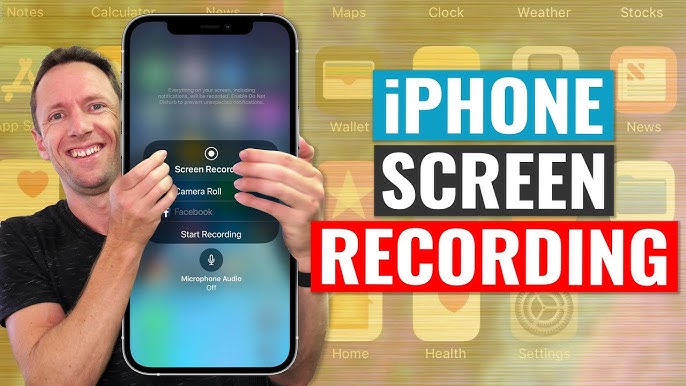
- Press and hold the Screen Recording button
- Tap the Microphone icon to turn it on
- Tap Start Recording
This is essential if you’re creating tutorials or commentary videos.
How to Stop Screen Recording
To end your recording:
- Tap the red status bar at the top of the screen and confirm
or - Open Control Center and tap the Screen Recording button again
Your video will automatically be saved to the Photos app.
Where to Find Your Recordings
All screen recordings are stored in the Photos app:
- Open Photos
- Go to Recents or Videos
- Locate your recording
From here, you can view, edit, or share your video.
Editing Your Screen Recordings
After recording, you may want to trim or enhance your video.
Basic Editing in Photos
- Open the video
- Tap Edit
- Drag the sliders to trim the beginning or end
- Tap Done to save
This is perfect for removing unnecessary parts like setup time.
Advanced Editing Options
For more control, consider using video editing apps that allow:
- Adding text or captions
- Inserting music or voiceovers
- Cropping or resizing
- Adjusting brightness and contrast
Editing helps transform a simple recording into a polished final product.
Best Uses for iPhone Screen Recording
1. Creating Tutorials
Screen recording is ideal for teaching others how to:
- Use apps
- Navigate settings
- Fix common issues
You can combine visuals with voice narration for clarity.
2. Recording Gameplay
Gamers can capture their gameplay sessions to:
- Share highlights
- Create walkthroughs
- Stream content
Make sure to enable Do Not Disturb to avoid interruptions.
3. Reporting Bugs
If you encounter a glitch:
- Record the issue
- Share the video with support teams
This makes troubleshooting faster and more accurate.
4. Saving Live Content
You can record:
- Live streams
- Social media content
- Online events
Just ensure you respect copyright and platform rules.
Tips for High-Quality Screen Recordings
To get the best results, follow these tips:
1. Enable Do Not Disturb
Prevent notifications from appearing during recording:
- Go to Settings > Focus > Do Not Disturb
2. Clean Your Screen
Close unnecessary apps and remove clutter for a cleaner look.
3. Use Landscape Mode
For videos like tutorials or gameplay, landscape orientation often looks better.
4. Speak Clearly
If using audio, ensure:
- Minimal background noise
- Clear and steady voice
5. Plan Your Actions
Before recording:
- Practice your steps
- Avoid unnecessary pauses
Preparation leads to smoother videos.
Common Problems and Fixes
Recording Not Saving
- Check storage space
- Restart your iPhone
- Update iOS
No Sound in Recording
- Ensure microphone is enabled
- Check app audio permissions
Lag or Low Quality
- Close background apps
- Avoid recording during heavy usage
Most issues can be resolved quickly with simple adjustments.
Privacy and Security Considerations
Screen recording captures everything visible, including:
- Notifications
- Messages
- Sensitive data
To protect your privacy:
- Turn on Do Not Disturb
- Log out of sensitive apps
- Be mindful of what appears on screen
Always review your recording before sharing.
Sharing Your Screen Recordings
Once your video is ready, you can easily share it:
- Via messaging apps
- Upload to social media
- Send through email
- Transfer to a computer
For large files, consider compressing the video or using cloud storage.
Using Screen Recording for Content Creation
Content creators can leverage screen recording to:
- Build YouTube tutorials
- Create Instagram Reels or TikToks
- Develop online courses
With consistent quality and creativity, screen recordings can become a powerful content strategy.
Screen Recording vs Third-Party Apps
While iPhone’s built-in recorder is excellent, third-party apps may offer:
- Higher customization
- Live streaming features
- Advanced editing tools
However, for most users, the native feature is more than sufficient.
How Screen Recording Enhances Productivity
Screen recording isn’t just for fun—it’s also a productivity tool:
- Save instructions for later
- Share workflows with teams
- Document processes
It reduces the need for lengthy explanations and improves communication.
Future of Screen Recording on iPhone
With each iOS update, Apple continues to enhance usability and performance. Future improvements may include:
- Better audio control
- Built-in editing tools
- Higher resolution options
The feature is expected to become even more powerful over time.
Conclusion
Screen recording on an iPhone is a versatile and powerful feature that goes far beyond simple video capture. Whether you’re creating tutorials, recording gameplay, documenting issues, or sharing knowledge, it provides a fast and efficient way to communicate visually.
By learning how to enable, use, and optimize screen recording, you can unlock new possibilities for productivity, creativity, and content creation. With just a few taps, your iPhone becomes a complete recording studio—ready to capture anything happening on your screen.
Start exploring this feature today, and you’ll quickly discover how valuable it can be in both personal and professional use.