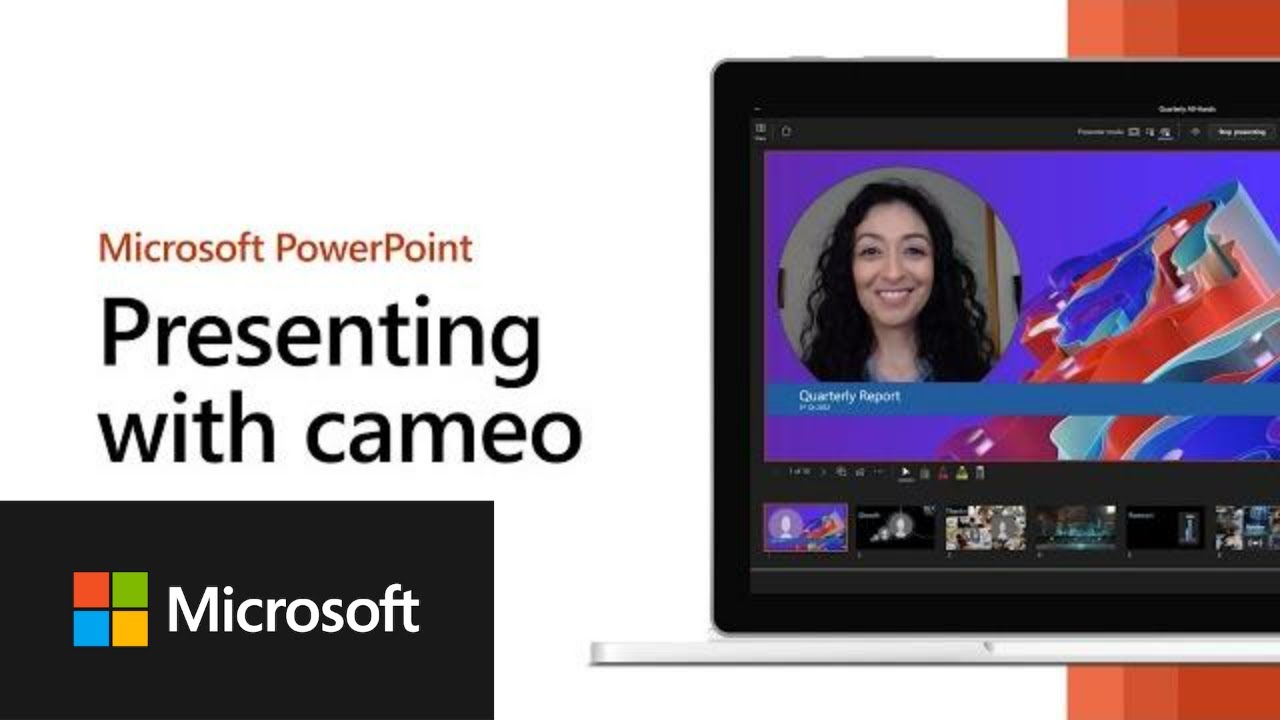
Presentations are evolving beyond static slides. With hybrid work and online collaboration becoming the norm, audiences expect more dynamic and interactive experiences. Microsoft has introduced PowerPoint Cameo, a feature that allows presenters to embed their live camera feed directly into slides. This transforms traditional presentations into immersive sessions where the presenter is visually part of the content.
What Is PowerPoint Cameo?
PowerPoint Cameo enables you to place your webcam feed inside a slide as if it were an image or object. You can resize, format, and apply transitions to the camera feed just like any other element.
Key highlights:
- Available for Microsoft 365 subscribers.
- Works on Windows, macOS, and web apps.
- Lets you apply styles, shapes, and effects to your camera feed.
- Supports multiple layouts for creative presentations.
How to Use PowerPoint Cameo
Insert Cameo
- Go to Insert > Cameo.
- A placeholder appears on your slide.
Enable Camera Feed
- Click the Preview icon to activate your webcam.
- Choose your preferred camera if multiple devices are connected.
Format the Cameo
- Use the Camera Format tab to adjust size, shape, and style.
- Apply transitions to make your video feed appear dynamically.
Present with Cameo
- During slideshow mode, your live feed appears seamlessly integrated into the slide.
Benefits of PowerPoint Cameo
- Enhanced Engagement: Audiences see both the presenter and the content simultaneously.
- Professional Look: Seamlessly integrates video without switching between apps.
- Creative Flexibility: Apply animations, shapes, and effects to personalize your feed.
- Hybrid-Friendly: Ideal for remote meetings, webinars, and online classes.
Common Issues and Fixes
Sometimes, users report that PowerPoint Cameo is not showing or working. Common causes include:
- Disabled webcam permissions.
- Outdated Office version.
- Unsupported builds of Windows 11.
- Driver or hardware issues.
Solutions:
- Ensure your Office app is updated to the latest build.
- Check camera permissions in Windows settings.
- Update webcam drivers via Device Manager.
- Restart PowerPoint after enabling the camera.
Use Cases for PowerPoint Cameo
- Business Presentations: Add a personal touch during client pitches.
- Education: Teachers can appear alongside slides for better student engagement.
- Content Creation: Record tutorials with both presenter and slides visible.
- Virtual Events: Enhance webinars and conferences with live presenter integration.
Risks and Considerations
- Privacy: Ensure your camera is intentionally enabled to avoid accidental exposure.
- Performance: Running Cameo alongside heavy animations may strain older PCs.
- Compatibility: Only available for Microsoft 365 subscribers; not supported in standalone Office versions.
Future Outlook
Microsoft is expected to expand Cameo’s capabilities, possibly allowing multi-camera support and deeper integration with Teams and other collaboration tools. As hybrid work continues, Cameo will likely become a standard feature for professional presentations.
Conclusion
PowerPoint Cameo is a powerful tool that revolutionizes presentations by embedding live video directly into slides. With its ability to enhance engagement, personalize delivery, and streamline hybrid communication, Cameo is a must-use feature for professionals, educators, and creators.
By learning how to insert, format, and troubleshoot Cameo, you can elevate your presentations and stand out in any virtual or in-person setting.