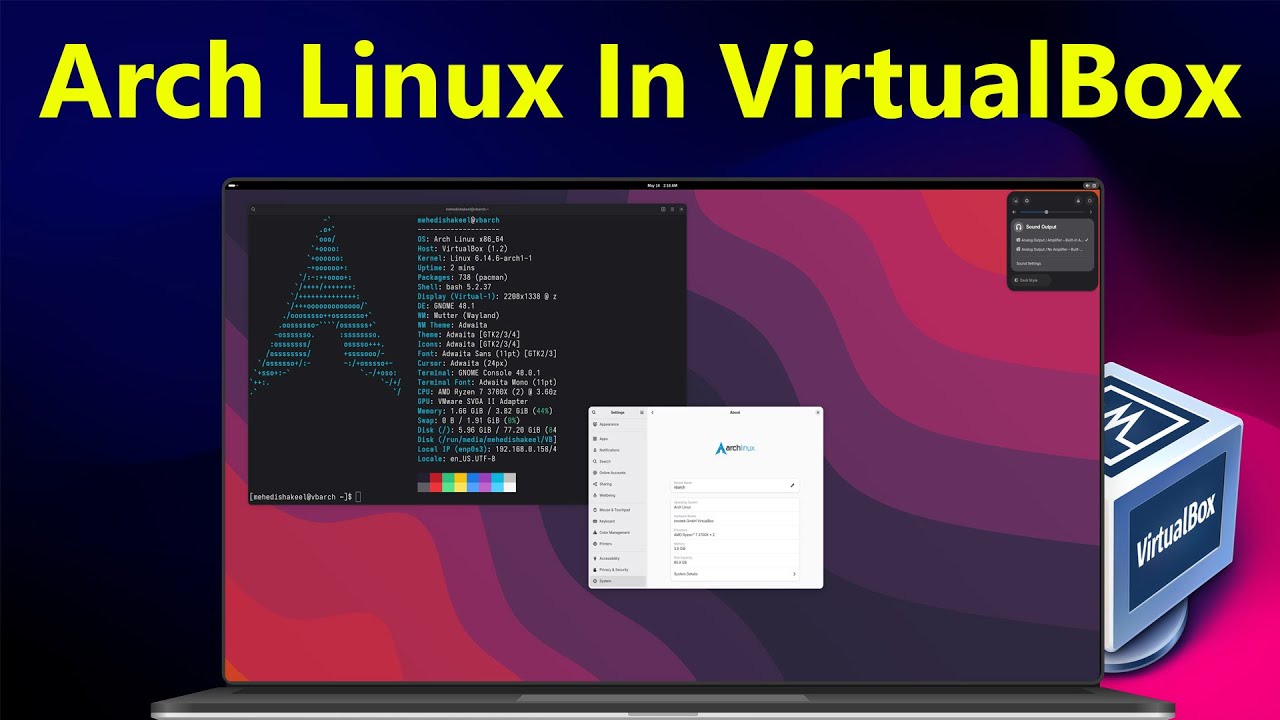
If you want to explore one of the most flexible and powerful Linux distributions without affecting your main operating system, installing Arch Linux in a virtual machine is the perfect solution. Using virtualization software like VirtualBox, you can safely test, learn, and customize Arch Linux without risking your primary system.
Arch Linux is known for its simplicity, minimalism, and full user control. However, its installation process can be challenging for beginners because it does not include a graphical installer. Instead, everything is done manually through the command line.
In this guide, we will walk you through a complete, step-by-step process to install Arch Linux in VirtualBox smoothly and successfully.
Why Install Arch Linux in VirtualBox?
Before diving into the setup, it’s helpful to understand why virtualization is a great choice.
Safe Testing Environment
Virtual machines allow you to experiment without modifying your main system.
Easy Reset
If something goes wrong, you can simply delete or reset the virtual machine.
Learning Opportunity
Arch Linux teaches you how Linux works at a deeper level.
Flexibility
You can customize everything from the base system to the desktop environment.
Requirements Before You Begin
Make sure you have the following:
- A computer with virtualization support enabled (Intel VT-x or AMD-V)
- Installed VirtualBox
- Arch Linux ISO file (download from official website)
- At least 2 GB RAM (4 GB recommended)
- Minimum 20 GB free disk space
Step 1: Create a New Virtual Machine
Open VirtualBox and create a new virtual machine.
Steps
- Click New.
- Name the VM (e.g., Arch Linux).
- Set: Type: Linux, Version: Arch Linux (64-bit)
- Allocate RAM (2048 MB or more).
- Create a virtual hard disk (VDI format).
- Set disk size (20 GB or more).
Click Create to finish.
Step 2: Attach the Arch Linux ISO
Next, connect the installation ISO file.
Steps
- Select your VM in VirtualBox.
- Click Settings → Storage.
- Under Controller IDE, click Empty.
- Choose the Arch Linux ISO file.
- Click OK.
Step 3: Start the Virtual Machine
Start the virtual machine.
You will see the Arch Linux boot menu.
Select:
Arch Linux install medium
After a few seconds, you will enter the command-line interface.
Step 4: Verify Internet Connection
Arch Linux requires an internet connection for installation.
Run:
ping -c 3 google.com
If you receive responses, your connection is working.
Step 5: Partition the Disk
You need to partition the virtual disk.
Run:
fdisk /dev/sda
Basic Steps
- Press n to create a new partition
- Press Enter for defaults
- Press w to write changes
Step 6: Format the Partition
Format the partition using the ext4 file system.
mkfs.ext4 /dev/sda1
Step 7: Mount the Partition
Mount the newly created partition.
mount /dev/sda1 /mnt
Step 8: Install Base System
Install the essential Arch Linux packages.
pacstrap /mnt base linux linux-firmware
This process may take some time depending on your internet speed.
Step 9: Generate fstab File
Create the file system table.
genfstab -U /mnt >> /mnt/etc/fstab
Step 10: Change Root into Installed System
Switch to the installed system environment.
arch-chroot /mnt
Step 11: Set Time Zone
Set your system time zone.
ln -sf /usr/share/zoneinfo/Region/City /etc/localtime
hwclock –systohc
Replace Region/City with your location.
Step 12: Configure Localization
Edit the locale file:
nano /etc/locale.gen
Uncomment:
en_US.UTF-8 UTF-8
Then run:
locale-gen
Step 13: Set Hostname
Set a hostname for your system.
echo archvm > /etc/hostname
Step 14: Set Root Password
Set the root password:
passwd
Enter and confirm your password.
Step 15: Install Bootloader
Install GRUB bootloader:
pacman -S grub
grub-install /dev/sda
grub-mkconfig -o /boot/grub/grub.cfg
Step 16: Exit and Reboot
Exit the installation environment:
exit
umount -R /mnt
reboot
Remove the ISO file when prompted.
Step 17: Install Desktop Environment (Optional)
After reboot, you will have a minimal command-line system.
To install a graphical interface, you can install a desktop environment such as:
- GNOME
- KDE Plasma
- XFCE
Example (XFCE):
pacman -S xfce4 xfce4-goodies lightdm lightdm-gtk-greeter
systemctl enable lightdm
Step 18: Install VirtualBox Guest Additions
To improve performance and enable features like full-screen mode:
- Insert Guest Additions CD from VirtualBox menu
- Mount and install it inside Arch Linux
This enhances graphics and usability.
Tips for Beginners
Installing Arch Linux can be challenging, but these tips can help:
Follow Commands Carefully
Even small mistakes can cause issues.
Use Arch Wiki
The Arch Wiki is one of the best Linux resources available.
Take Snapshots in VirtualBox
Snapshots allow you to save progress and revert if needed.
Advantages of Using Arch Linux
Once installed, Arch Linux offers many benefits:
- Lightweight and fast
- Fully customizable
- Rolling release updates
- Access to Arch User Repository (AUR)
Conclusion
Installing Arch Linux in VirtualBox is a great way to explore one of the most powerful Linux distributions without affecting your main system. Although the installation process is manual and may seem complex at first, it provides a valuable learning experience.
By following this step-by-step guide, you can successfully set up Arch Linux, customize it to your needs, and gain deeper knowledge of how Linux systems work.
With practice and patience, you’ll find that Arch Linux offers unmatched flexibility and control—making it a favorite among advanced users and enthusiasts.