System recovery tools are essential when your computer stops working properly. If Windows becomes unstable, corrupted, or fails to boot, recovery options can help restore the system without needing professional repair. One of the most useful built-in recovery tools is the “Recover from a drive” feature available in Windows 11.
This option allows users to restore their computer using a bootable recovery USB drive, which can reinstall or repair Windows even when the operating system cannot start normally. It is particularly helpful when dealing with system corruption, malware infections, or major performance problems.
However, some users encounter an issue where the “Recover from a drive” option is missing or not working. When this happens, restoring the system becomes more difficult.
In this guide, you will learn why the “Recover from a drive” feature may not appear in Windows 11 and how to fix it step by step.
What Is the “Recover From a Drive” Feature?
The “Recover from a drive” feature is a built-in recovery option that allows users to restore Windows using a recovery USB drive.
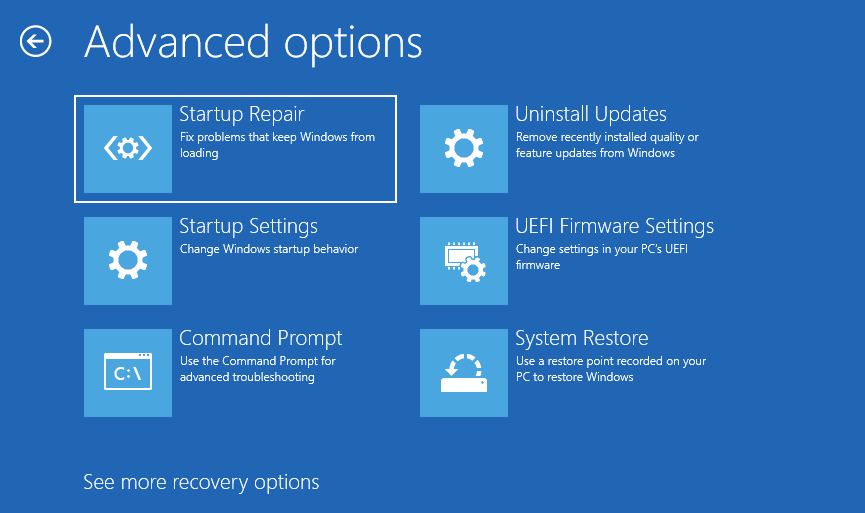
This tool is part of the Windows Recovery Environment, commonly known as WinRE.
Using a recovery drive allows you to:
- Reinstall Windows
- Repair corrupted system files
- Restore system settings
- Remove problematic drivers or updates
- Recover a non-booting system
This makes it one of the most important troubleshooting tools available in Windows.
Why the “Recover From a Drive” Option May Not Appear
Several factors can prevent the recovery option from showing up in Windows.
Understanding the cause helps you apply the correct solution.
1. Windows Recovery Environment Disabled
If the recovery environment is disabled, recovery tools such as “Recover from a drive” may not appear.
2. Missing Recovery Partition
Many systems include a dedicated recovery partition that stores repair files. If this partition is missing or damaged, the option may disappear.
3. Corrupted System Files
Corrupted Windows components can interfere with recovery features.
4. Outdated Windows Version
Older or partially updated Windows builds may cause certain recovery tools to malfunction.
5. USB Recovery Drive Not Detected
If you are trying to recover from a USB drive, Windows must recognize the device properly.
Method 1: Check if Windows Recovery Environment Is Enabled
The first step is verifying that the recovery environment is active.
Steps
- Open Command Prompt as Administrator.
- Type the following command:
reagentc /info
- Press Enter.
If the output shows Windows RE Status: Disabled, the recovery environment must be enabled.
To enable it, run:
reagentc /enable
Restart your computer after enabling the feature.
Method 2: Create a New Recovery Drive
If the original recovery drive is missing or corrupted, you can create a new one.
Windows provides a tool called Recovery Drive Tool that allows users to create bootable recovery media.
Steps to Create a Recovery USB
- Insert a USB drive with at least 16 GB of storage.
- Open the Start menu.
- Search for Create a recovery drive.
- Open the Recovery Drive tool.
- Follow the on-screen instructions.
Once completed, you can use the USB drive to recover Windows.
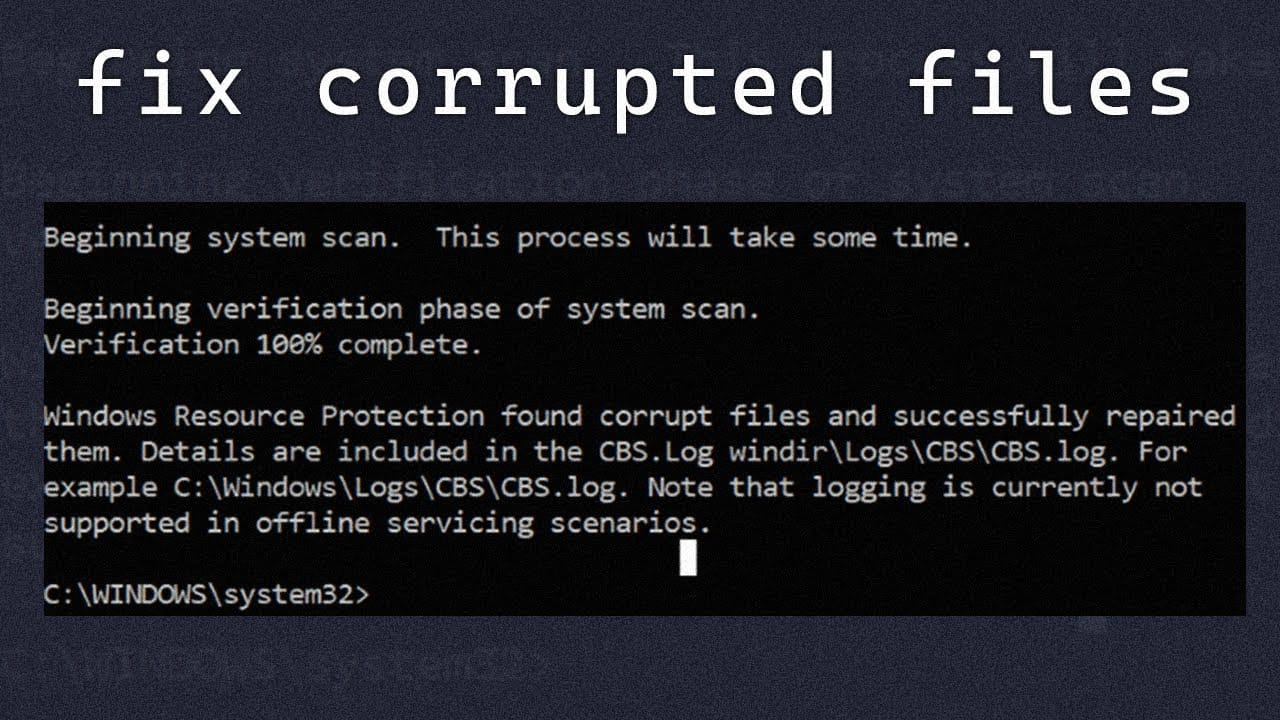
Method 3: Repair Corrupted System Files
System file corruption can prevent recovery tools from working properly.
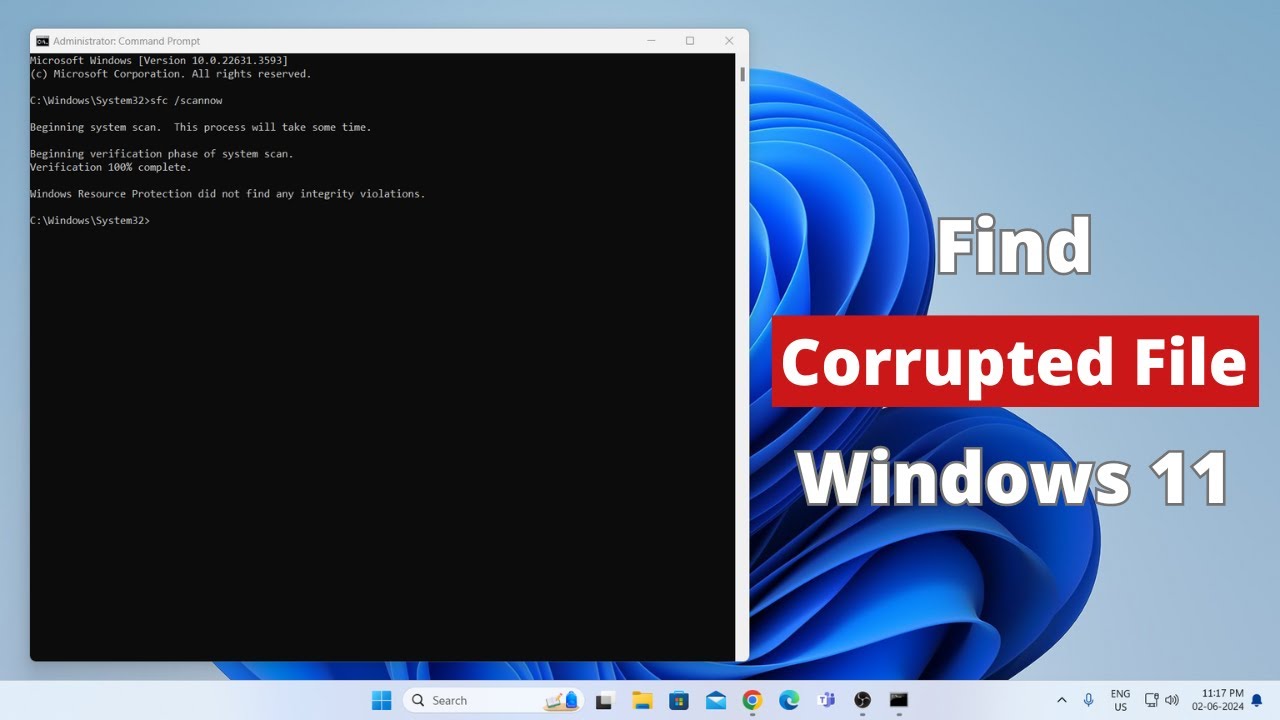
Windows includes a built-in utility called System File Checker.
Steps
- Open Command Prompt as Administrator.
- Run the command:
sfc /scannow
- Wait for the scan to finish.
The tool will automatically repair corrupted system files if possible.
Method 4: Use DISM to Repair Windows Image
If the System File Checker cannot fix the problem, you can use the Deployment Image Servicing and Management tool, commonly known as DISM.
Steps
Open Command Prompt as Administrator and run:
DISM /Online /Cleanup-Image /RestoreHealth
This command repairs the Windows system image and restores missing components.
After the process completes, restart your PC and check if the recovery option appears.
Method 5: Verify Recovery Partition
The recovery partition contains important files used by Windows recovery tools.
To check if it exists:
- Right-click the Start menu.
- Select Disk Management.
- Look for a small partition labeled Recovery.
If the partition is missing or corrupted, the recovery feature may not work.
In such cases, using a bootable Windows installation USB may be necessary.
Method 6: Use Windows Installation Media
If the “Recover from a drive” option is still unavailable, you can use Windows installation media as an alternative recovery method.
You can create installation media using Windows Media Creation Tool.
Steps
- Download the Media Creation Tool.
- Insert a USB drive.
- Create bootable installation media.
- Boot your PC from the USB drive.
- Choose Repair your computer instead of Install.
This opens the Windows Recovery Environment.
Method 7: Check BIOS Boot Settings
Sometimes the recovery drive does not appear because the system is not configured to boot from USB devices.
To fix this:
- Restart your computer.
- Enter the BIOS or UEFI settings.
- Enable USB boot.
- Set the USB drive as the first boot device.
Save the settings and restart the computer.
When to Use “Recover From a Drive”
This recovery feature is especially useful in the following situations:
- Windows fails to boot
- The system is heavily corrupted
- Malware has damaged the operating system
- Performance issues cannot be resolved
- System reset options are unavailable
Using a recovery drive can restore the system quickly without requiring a complete manual reinstall.
Tips to Prevent Recovery Issues
Preventing system problems is always better than fixing them later.
Here are a few best practices.
Keep Windows Updated
Regular updates improve stability and fix system bugs.
Create a Recovery Drive Early
It is recommended to create a recovery USB drive when your system is working properly.
Back Up Important Data
Use cloud storage or external drives to protect important files.
Avoid Forced Shutdowns
Improper shutdowns can corrupt system files and cause recovery tools to malfunction.
Conclusion
The “Recover from a drive” feature in Windows 11 is an essential troubleshooting tool that allows users to repair or reinstall Windows using a bootable recovery USB drive. When Windows becomes unstable, corrupted, or fails to start, this feature can restore the system quickly and effectively.
However, if the option is missing or not working, the problem is usually related to a disabled recovery environment, corrupted system files, or a missing recovery partition.
By enabling the Windows Recovery Environment, repairing system files, creating a new recovery USB drive, or using Windows installation media, you can restore access to recovery tools and fix the issue.
Keeping your system updated and preparing recovery media in advance ensures that you can recover your PC quickly whenever serious Windows problems occur.