Installing graphics drivers is essential for ensuring that your computer’s graphics card works properly. Graphics drivers allow the operating system and applications to communicate with the GPU, enabling smooth gaming, video editing, and high-performance computing. However, sometimes users encounter installation errors that prevent drivers or related software from installing correctly.
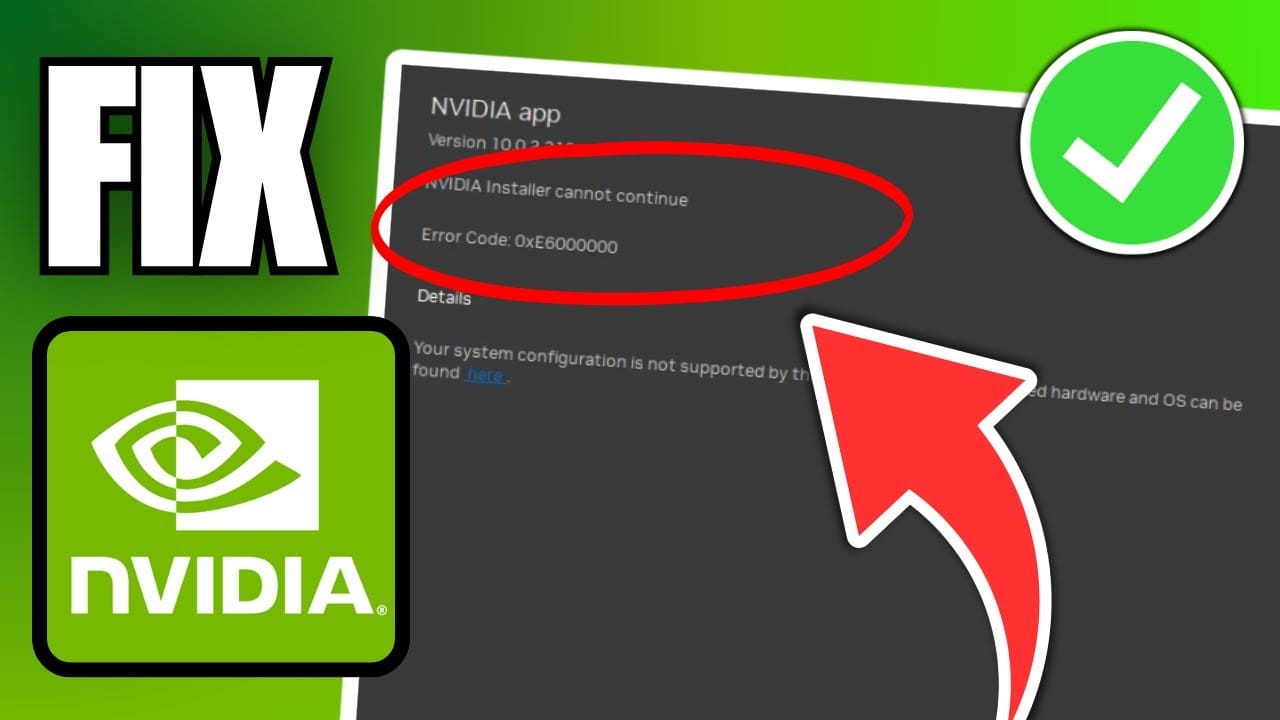
One common issue that users experience is the message:
“Installer cannot continue. Error code 0xE6000000.”
This error typically appears when installing the NVIDIA App or certain NVIDIA driver packages on a Windows system. The installer determines that your system does not meet the requirements for installation. In many cases, the error occurs even when the system appears compatible.
The problem usually arises because of unsupported hardware, incompatible operating systems, incorrect installer versions, or leftover driver files that interfere with the installation process.
This comprehensive guide explains what causes the NVIDIA installer error 0xE6000000 and how you can fix it step by step.
Understanding Error Code 0xE6000000
The error code 0xE6000000 is generated by the NVIDIA installer when it cannot verify that the system meets the required conditions for installation.
The installer checks several system factors before continuing, including:
- GPU model compatibility
- Operating system version
- Driver package compatibility
- Existing driver conflicts
- Hardware detection by the system
If one or more of these checks fails, the installer stops and displays the error.
This is done to prevent installing drivers that might cause system instability or hardware conflicts.
What Is the NVIDIA App?
The NVIDIA App is a modern software platform developed by NVIDIA to replace several older tools.
It integrates features previously available in:
- GeForce Experience
- NVIDIA Control Panel
- Driver update utilities
- The NVIDIA App allows users to:
- Update graphics drivers
- Optimize game settings
- Record gameplay
- Monitor GPU performance
- Access advanced graphics options
However, installation problems like error 0xE6000000 can prevent users from accessing these features.
Common Causes of NVIDIA Error 0xE6000000
Several issues may trigger this error during installation.
Understanding the cause makes it easier to apply the correct solution.
1. Unsupported NVIDIA GPU
The most common cause of this error is that the system does not have a supported NVIDIA graphics card.
The installer checks for compatible GPUs. If your computer has:
- Integrated graphics only
- An older NVIDIA GPU
- A different GPU brand
- The installer may stop with the error.
Some software packages only support certain GPU generations.
2. Incorrect Driver Package
NVIDIA provides multiple driver packages depending on:
- GPU series
- Operating system
- architecture (32-bit or 64-bit)
- laptop vs desktop GPU
Installing the wrong package can cause the installer to fail.
For example, installing a desktop GPU driver on a laptop GPU may trigger the error.
3. Unsupported Operating System
The installer also checks whether the operating system version is supported.
Older systems such as outdated Windows builds may not support newer NVIDIA drivers.
For example:
- Windows versions without recent updates
- unsupported Windows editions
- outdated system architecture
These situations can prevent installation.
4. Leftover or Corrupted Drivers
Sometimes previous driver installations leave behind files or registry entries that conflict with new installations.
This often happens if:
- driver installation was interrupted
- drivers were removed improperly
- multiple GPU drivers were installed
These remnants can confuse the installer and trigger error 0xE6000000.
5. Conflicts with Existing GPU Drivers
Systems that previously used another graphics card brand may still have driver components installed.
Common conflicts occur when switching between:
- NVIDIA GPUs
- AMD GPUs
- Intel integrated graphics drivers
Old driver remnants may prevent NVIDIA software from installing.
6. Security Software Blocking Installation
Some antivirus or system protection tools may block driver installations.
Driver installers modify system-level components, which security software may interpret as suspicious behavior.
7. Incorrect Installer Version
NVIDIA releases multiple installer builds depending on system configuration.
Downloading an incorrect installer from an unofficial source may cause compatibility issues.
Always download installers from official sources.
How to Fix NVIDIA Installer Error 0xE6000000
There are several methods that can resolve this installation issue.
Follow the solutions below in order.
Method 1: Verify Your GPU Model
First, confirm that your system actually contains a supported NVIDIA GPU.
Steps
- Right-click the Start menu.
- Select Device Manager.
- Expand Display adapters.
If you see an NVIDIA GPU listed, note the model name.
If no NVIDIA GPU appears, your system may only have integrated graphics.
In that case, the NVIDIA App cannot be installed.
Method 2: Download the Correct Driver
Installing the correct driver version is critical.
Visit the official NVIDIA website and download drivers based on:
- GPU model
- operating system
- system architecture
- laptop or desktop version
Installing the correct package usually resolves compatibility issues.
Method 3: Update Windows
Outdated operating systems may not support the latest NVIDIA drivers.
To update Windows:
- Open Settings.
- Go to Windows Update.
- Click Check for updates.
- Install all available updates.
Restart the computer after updating.
Method 4: Remove Old Drivers Completely
Leftover drivers are a common cause of installation errors.
Removing them completely often resolves the issue.
Steps
- Open Apps & Features.
- Uninstall all NVIDIA components.
- Restart your computer.
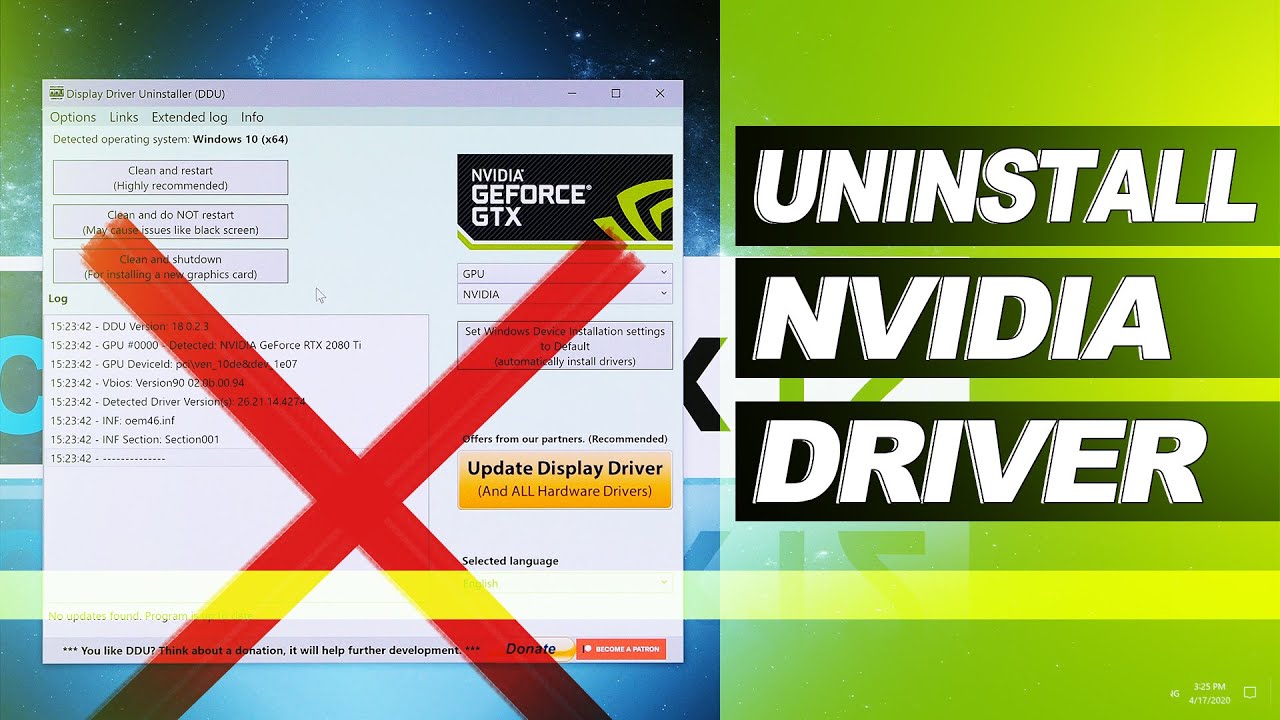
For a deeper cleanup, use a driver removal utility.
Method 5: Perform a Clean Installation
NVIDIA installers include a clean installation option.
Steps
- Launch the NVIDIA installer.
- Select Custom Installation.
- Enable Perform a clean installation.
This removes old profiles and installs fresh drivers.
Method 6: Use Safe Mode to Remove Drivers
Some driver components cannot be removed while Windows is running normally.
Booting into Safe Mode allows complete removal.
Steps
- Restart the computer.
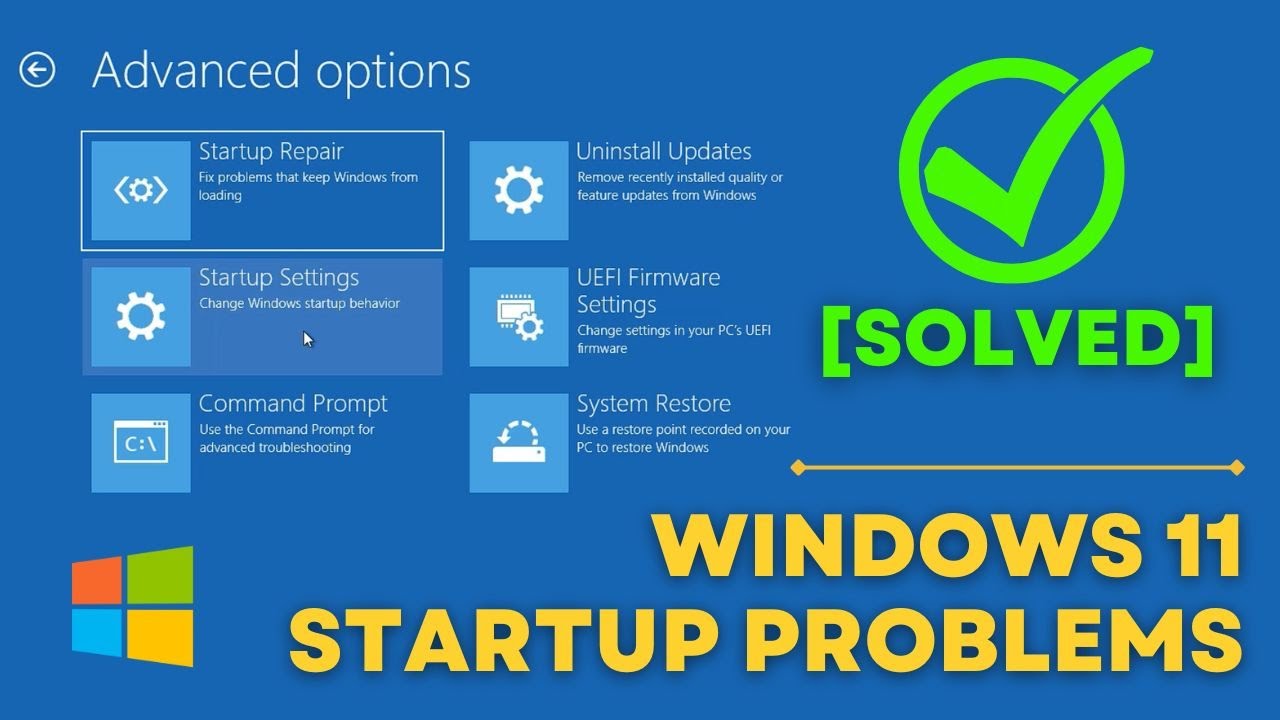
- Enter Advanced Startup Options.
- Select Safe Mode.
- Remove existing drivers.
- Restart normally.
Then reinstall the drivers.
Method 7: Disable Antivirus Temporarily
Antivirus software may block installation.
To test this possibility:
- Temporarily disable antivirus protection.
- Run the NVIDIA installer again.
If installation succeeds, add the installer to antivirus exceptions.
Method 8: Check System Requirements
Verify that your system meets minimum requirements for the NVIDIA software.
Check:
- GPU compatibility
- operating system version
- available storage space
- system architecture
If requirements are not met, installation will fail.
Method 9: Install Through Device Manager
You can also install the driver manually through Device Manager.
Steps
- Open Device Manager.
- Right-click the GPU.
- Select Update driver.
- Choose Browse my computer for drivers.
- Select the downloaded driver folder.
This method bypasses some installer checks.
Method 10: Use Windows Update Drivers
Windows sometimes provides compatible drivers automatically.
Steps
- Open Settings.
- Go to Windows Update.
- Select Advanced Options.
- Install optional driver updates.
This can install a working NVIDIA driver version.
Preventing Future Driver Installation Issues
To avoid installation problems in the future, follow these best practices.
Keep Drivers Updated
Regular updates ensure compatibility with new software and games.
Download Drivers Only From Official Sources
Avoid unofficial downloads that may contain modified installers.
Remove Old Drivers Before GPU Upgrades
Switching GPUs without removing old drivers often causes conflicts.
Maintain System Updates
Keeping Windows updated ensures compatibility with modern driver packages.
When to Contact NVIDIA Support
If none of the solutions resolve the issue, the problem may be related to hardware or firmware.
Consider contacting NVIDIA support if:
- the GPU is not detected by the system
- the installer fails repeatedly
- system errors occur during installation
Support teams can provide specialized driver versions or troubleshooting steps.
Conclusion
The message “Installer cannot continue. Error code 0xE6000000” usually appears when the NVIDIA installer detects compatibility issues with hardware, operating system, or driver packages. Although the error may seem confusing, it is typically caused by unsupported GPUs, incorrect driver versions, leftover drivers, or outdated Windows installations.
By verifying your GPU model, downloading the correct driver package, removing old drivers, updating your operating system, and performing a clean installation, most users can resolve this issue successfully.
Keeping your system drivers organized and updated will ensure that your graphics hardware performs reliably and that future software installations proceed without errors.